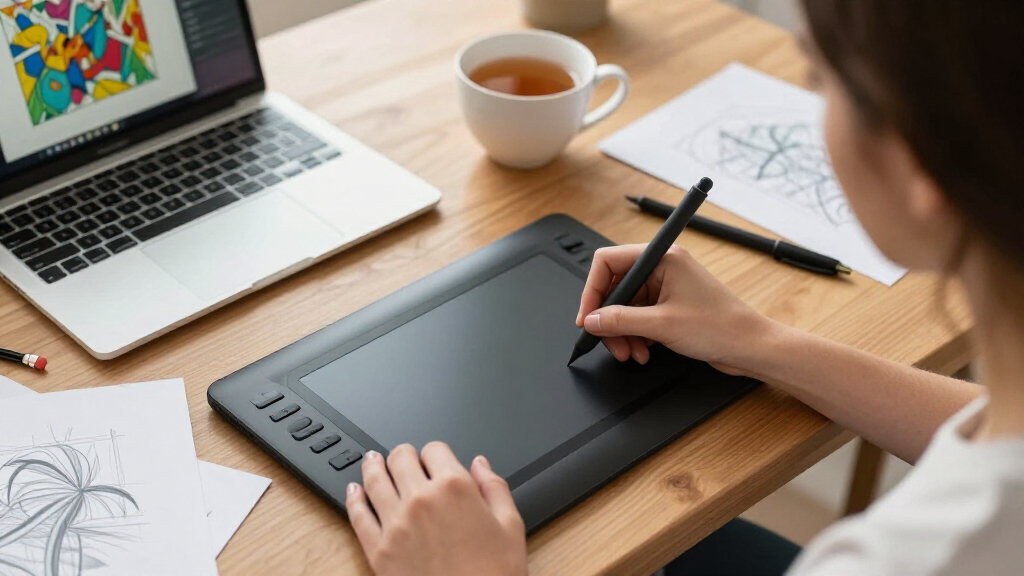

Choosing your first digital drawing tablet comes down to one core decision: a budget-friendly screenless tablet that plugs into a computer, a pen display with its own screen, or a fully standalone device that needs no computer at all. The Wacom Intuos Small earns my best overall pick for beginners thanks to its dependable pen feel, forgiving software bundle, and the lowest-risk entry point for learning the hand-eye coordination drawing tablets demand. If you already know you want to draw directly on a screen, the XPPen Artist 13.3 Pro V2 offers a full-laminated display and 16K pressure levels at a beginner-friendly tier, while the Frunsi RubensTab T8 stands out as the cheapest way to start drawing without owning a computer. The main tradeoffs you’ll face are price versus feedback: screenless tablets cost less but feel indirect at first, while screened and standalone models feel natural but add cost, weight, and setup complexity. Keep reading for the full breakdown of all 15 options and which one fits your budget, devices, and learning style.

Get art and craft supplies delivered free with Prime
- Fast, free delivery on millions of items
- Prime Video, Amazon Music and more included
- Member-only deals all year
Key Takeaways
- Screenless tablets dominated the value tier: the Wacom Intuos Small, HUION H640P, and XPPen Deco 01 V3 deliver the best pen-to-price ratio, making them the lowest-risk way to find out whether digital art sticks for you.
- The full-laminated displays on the XPPen Artist 13.3 Pro V2 and HUION Kamvas 13 (Gen 3) removed the parallax gap that makes cheaper screened tablets like the GAOMON PD1161 feel less precise — that single spec separated the serious pen displays from the rest.
- Standalone tablets (RubensTab T8, PicassoTab A10 and X11, RubensTab T11 Pro) solved the no-computer problem but traded away pressure sensitivity, pen quality, and app compatibility, so they only make sense as a first tablet if you have no PC at all.
- Generation matters more than brand: the UGEE M708 V3 and HUION H1060P showed that stepping up within the same product family bought shortcut keys and a larger active area for very little extra complexity.
- Active-area size was the most commonly misjudged factor — a 6×4 inch tablet like the H640P is genuinely fine for learning, while oversized options like the GAOMON PD2200’s 21.5-inch screen demand desk space and arm movement beginners rarely expect.
| Wacom Intuos Small Wired Graphic Drawing Tablet with Pen + Software |  | Best Overall for Beginners | Brand: Wacom | Model: Intuos Small | Connectivity: Wired (USB) | VIEW LATEST PRICE | See Our Full Breakdown |
| XPPen Artist 12 Pro Lite Version Drawing Tablet with Screen 8192 Stylus |  | Best Budget Drawing Screen | Screen Size: 11.6 inches, 1920×1080 IPS | Lamination: Full-laminated glass, 178° viewing angle | Pressure Sensitivity: 8192 levels | VIEW LATEST PRICE | See Our Full Breakdown |
| UGEE M708 V2 Drawing Tablet, 10×6 Inch Graphics Tablet with Battery-Free Stylus |  | Best Value Large Drawing Area | Active Area: 10 x 6.25 inches | Pressure Sensitivity: 8192 levels | Tilt Support: Up to 60 degrees | VIEW LATEST PRICE | See Our Full Breakdown |
| XPPen Deco 01 V3 10×6 Drawing Tablet with 16K Battery-Free Stylus |  | Best Specs-to-Price Ratio | Active Area: 10 x 6.25 inches | Pressure Levels: 16,384 | Tilt Support: 60 degrees | VIEW LATEST PRICE | See Our Full Breakdown |
| Frunsi RubensTab T8 Standalone 8-inch Drawing Tablet |  | Best Standalone Pick for Kids | Screen: 8 inches, 1200×800 | Operating System: Android 13 (standalone) | Processor: MTK Quad-Core | VIEW LATEST PRICE | See Our Full Breakdown |
| HUION Inspiroy H640P 6×4 Inch Drawing Tablet with 8192 Pen Pressure Levels |  | Best Compact Pick | Active Area: 6 x 4 inches | Pressure Sensitivity: 8192 levels | Stylus: Battery-free PW100 | VIEW LATEST PRICE | See Our Full Breakdown |
| HUION Inspiroy H1060P Graphics Drawing Tablet, 10 x 6.25 in, 12+16 Hot Keys |  | Best for Shortcut-Driven Workflows | Active Area: 10 x 6.25 inches | Hot Keys: 12 press keys + 16 soft keys | Stylus: Battery-free PW100 with ±60° tilt | VIEW LATEST PRICE | See Our Full Breakdown |
| PicassoTab A10 10″ Standalone Drawing Tablet – No Computer Needed |  | Best No-Computer Option | Screen Size: 10 inches | Stylus Pressure Levels: 4096 | Processor: Octa-core | VIEW LATEST PRICE | See Our Full Breakdown |
| UGEE M708 V3 Drawing Tablet, 10×6 Inch Active Area with 8192-Level Passive Stylus |  | Best Budget Value | Active Drawing Area: 10 x 6 inches | Pressure Sensitivity: 16384 levels | Shortcut Keys: 8 customizable | VIEW LATEST PRICE | See Our Full Breakdown |
| XPPen Artist 13.3 Pro V2 Drawing Tablet with Screen, 16K Pressure Levels, Full-Laminated Display |  | Best Premium Beginner Display | Screen Size: 13.3 inches | Resolution: Full HD | Color Gamut: 88% NTSC (sRGB ≥123%) | VIEW LATEST PRICE | See Our Full Breakdown |
| PicassoTab X11 11″ Standalone Drawing Tablet |  | Best Standalone Value for Beginners | Screen Size: 11 inches | Display: 2K fully laminated, paper-like, anti-glare | Pressure Sensitivity: 4096 levels | VIEW LATEST PRICE | See Our Full Breakdown |
| GAOMON PD1161 11.6″ FHD Drawing Tablet with Screen |  | Best Budget Pen Display | Screen Size: 11.6 inches, Full HD IPS | Color Gamut: 72% NTSC (100% sRGB) | Pressure Levels: 8192 | VIEW LATEST PRICE | See Our Full Breakdown |
| HUION Kamvas 13 (Gen 3) 13.3″ Drawing Tablet with Screen |  | Best Premium Pick | Screen Size: 13.3 inches, fully laminated Canvas Glass 2.0 | Pressure Sensitivity: 16384 levels, 2g IAF | Color Gamut: 99% sRGB, Rec.709, ΔE<1.5 | VIEW LATEST PRICE | See Our Full Breakdown |
| RubensTab T11 Pro Standalone Drawing Tablet |  | Best for Students and Note-Takers | Screen Size: 10.1 inches, 1920×1200 FHD IPS | Pressure Sensitivity: 1024 levels | Battery: 5800mAh, up to 5 hours use | VIEW LATEST PRICE | See Our Full Breakdown |
| GAOMON PD2200 21.5″ Drawing Tablet with Screen |  | Best Large-Screen Canvas | Screen Size: 21.5 inches, full-laminated HD | Color Gamut: 130% sRGB / 92% NTSC | Pressure Levels: 8192 | VIEW LATEST PRICE | See Our Full Breakdown |
| digital drawing tablets for beginner | Compatibility | Screen Size |
|---|---|---|
| Wacom Intuos Small Wired Graph | — | — |
| XPPen Artist 12 Pro Lite Versi | Windows 7+, macOS 10.10+, ChromeOS 88+, Linux | 11.6 inches, 1920×1080 IPS |
| UGEE M708 V2 Drawing Tablet | Windows 7+, macOS 10.12+, Chrome OS 88+, Linux, Android 6.0+ | — |
| XPPen Deco 01 V3 10×6 Drawing | Windows 7+, macOS 10.13+, Android 10.0+, Chrome OS 88+, Linux | — |
| Frunsi RubensTab T8 Standalone | — | — |
| HUION Inspiroy H640P 6×4 Inch | Mac, Windows, Linux, Android 6.0+ | — |
| HUION Inspiroy H1060P Graphics | Windows 7+, macOS 10.12+, Android 6.0+, Linux (Ubuntu/Xorg) | — |
| PicassoTab A10 10" Standalone | — | 10 inches |
| UGEE M708 V3 Drawing Tablet | Windows 11/10/8/7, macOS 10.10+, Android 10.0+, Chrome OS 88+, Linux | — |
| XPPen Artist 13.3 Pro V2 Drawi | Windows 7+, macOS 10.10+, Chrome OS 88+, Linux | 13.3 inches |
| PicassoTab X11 11" Standalone | — | 11 inches |
| GAOMON PD1161 11.6" FHD Drawin | Windows 7+, macOS 10.12+ | 11.6 inches, Full HD IPS |
| HUION Kamvas 13 | Windows 10+, macOS 10.12+, Android, Linux (Ubuntu 20.04) | 13.3 inches, fully laminated Canvas Glass 2.0 |
| RubensTab T11 Pro Standalone D | — | 10.1 inches, 1920×1200 FHD IPS |
| GAOMON PD2200 21.5" Drawing Ta | Windows 7+, macOS 10.12+ | 21.5 inches, full-laminated HD |
More Details on Our Top Picks
Wacom Intuos Small Wired Graphic Drawing Tablet with Pen + Software
For a first tablet, reliability beats spec sheets, and that’s why the Wacom Intuos Small earns the top spot. Wacom’s EMR pen technology is the same battery-free system found in its professional tablets, so a beginner learns on hardware that behaves like the gear they’d use later. The bundled creative software and online training (after registration) mean a new artist can start drawing the day it arrives rather than shopping for apps. Compared with the larger UGEE M708 V2, the Intuos Small trades drawing space for a desk-friendly footprint and Wacom’s famously stable drivers — a fair swap for someone still figuring out their workflow. The tradeoff is real, though: a small active area forces more zooming on detailed work, and the wired-only connection tethers you to your desk.
Pros:- Industry-leading battery-free EMR pen with a natural pen-on-paper feel
- Works with virtually all creative software without driver headaches
- Includes creative software and online training after registration
- Compact footprint fits any desk setup
Cons:- Small active area limits workspace for larger drawings
- Wired-only connection restricts positioning and portability
Best for: Complete beginners who want proven, fuss-free hardware and guided software to learn on
Not ideal for: Artists who already sketch large compositions — the small active area will feel cramped next to 10×6 options
- Brand:Wacom
- Model:Intuos Small
- Connectivity:Wired (USB)
- Pen Technology:EMR, battery-free
- Included Software:Creative software and online training (with registration)
- Works With:Any drawing, painting, photo/video editing, and design software
Our verdict“The safest first tablet you can buy — buy it if you value dependable hardware and included learning resources over raw drawing space.”
XPPen Artist 12 Pro Lite Version Drawing Tablet with Screen 8192 Stylus
Drawing on a screen instead of a blank pad removes the biggest beginner hurdle — the hand-eye disconnect — and the XPPen Artist 12 Pro Lite makes that upgrade affordable. Its full-laminated 11.6-inch display virtually eliminates parallax, so your lines appear exactly under the pen tip, which feels dramatically more intuitive than a screenless tablet like the XPPen Deco 01 V3. The 60-degree tilt support lets beginners shade naturally without fiddling with brush settings, and the Red Dial plus eight shortcut keys keep tools within reach. Note that this is a drawing monitor, not a standalone device — it must be tethered to a computer via the 3-in-1 cable, unlike the self-contained Frunsi RubensTab T8. And 8192 pressure levels, while plenty for learning, is half the resolution of XPPen’s own newer V3-series hardware.
Pros:- Full-laminated 11.6-inch IPS display eliminates parallax for a paper-like feel
- 60-degree tilt support enables natural shading techniques
- Red Dial and 8 shortcut keys put common controls at your fingertips
- Broad compatibility including Windows, macOS, ChromeOS, and Linux
Cons:- Requires a constant computer connection via 3-in-1 cable — not standalone
- 8192 pressure levels trail the 16K stylus of newer XPPen models
Best for: Beginners who struggle with the disconnect of drawing on a pad while watching a separate screen
Not ideal for: Anyone wanting a portable, computer-free setup — this display needs a laptop or desktop connected at all times
- Screen Size:11.6 inches, 1920×1080 IPS
- Lamination:Full-laminated glass, 178° viewing angle
- Pressure Sensitivity:8192 levels
- Tilt Support:60 degrees
- Controls:Red Dial plus 8 programmable shortcut keys
- Connectivity:3-in-1 cable (USB)
- Compatibility:Windows 7+, macOS 10.10+, ChromeOS 88+, Linux
Our verdict“The cheapest sensible way to start drawing directly on a screen, provided you always work near a computer.”
UGEE M708 V2 Drawing Tablet, 10×6 Inch Graphics Tablet with Battery-Free Stylus
Most cheap beginner tablets force you onto a cramped 6×4 surface, but the UGEE M708 V2 delivers a full 10 x 6.25-inch active area at a starter price. That extra room matters more than almost any other spec for a beginner: long, confident strokes are how you develop line control, and a small pad like the Wacom Intuos Small simply can’t offer them. The battery-free stylus with tilt support, eight shortcut keys, and generous accessory bundle (glove, replacement nibs, OTG adapter) round out a package that punches above its tier. Compared with the XPPen Deco 01 V3, the M708 V2 gives you similar size and tilt for less, though its advertised pressure handling is less refined on paper. The catch: drivers must be downloaded from UGEE’s website for full functionality, and there’s no iPhone support.
Pros:- Large 10 x 6.25-inch active area in a slim, lightweight body
- Battery-free stylus with tilt support up to 60 degrees
- 8 customizable shortcut keys speed up workflow
- Works with Windows, macOS, Chrome OS, Linux, and Android (OTG adapter included)
Cons:- Requires driver download from UGEE’s website for full functionality
- Not standalone — always needs a connected computer or phone; no iPhone support
Best for: Budget-conscious beginners who want a full-size drawing surface without paying screen-tablet prices
Not ideal for: Apple iPhone users or anyone unwilling to install drivers manually — it won’t reach full potential out of the box
- Active Area:10 x 6.25 inches
- Pressure Sensitivity:8192 levels
- Tilt Support:Up to 60 degrees
- Stylus:Battery-free (passive)
- Shortcut Keys:8 customizable express keys
- Compatibility:Windows 7+, macOS 10.12+, Chrome OS 88+, Linux, Android 6.0+
- Included Accessories:Pen holder, glove, replacement nibs, OTG adapter, cleaning cloth
Our verdict“The most drawing space per dollar in this lineup — ideal for beginners who’d rather grow into a big surface than outgrow a small one.”
XPPen Deco 01 V3 10×6 Drawing Tablet with 16K Battery-Free Stylus
If you want hardware that won’t feel outdated in six months, the XPPen Deco 01 V3 is the strongest value here. Its 16,384 pressure levels double the sensitivity of the UGEE M708 V2 and the XPPen Artist 12 Pro Lite, meaning feather-light strokes register cleanly instead of breaking — a subtle but genuine advantage once beginners start doing line-art and shading. Modern touches like USB-C connectivity and a razor-thin 8mm body make it feel like a current-generation device, and shortcut keys that work for both right- and left-handed users are a thoughtful touch. The bundle is generous too: ten spare nibs, a glove, and a protective film. The honest downside is that it’s purpose-built for beginners — professionals will want dials or a screen — and full functionality requires a recent Windows 11 or macOS 12 update.
Pros:- Class-leading 16,384 pressure levels with 60-degree tilt support
- Battery-free stylus needs no charging
- Slim 8mm profile and USB-C connectivity feel modern and portable
- Shortcut keys support right- and left-handed setups; 10 spare nibs included
Cons:- Aimed squarely at beginners; lacks advanced controls professionals expect
- Needs Windows 11 or macOS 12 update for full functionality
Best for: Beginners who want near-flagship pen performance and future-proof USB-C connectivity at a mid-tier price
Not ideal for: Advanced or professional artists — the feature set tops out at basics, with no dial or display
- Active Area:10 x 6.25 inches
- Pressure Levels:16,384
- Tilt Support:60 degrees
- Stylus:Battery-free, no charging required
- Thickness:8 mm
- Connectivity:USB-C to USB-C, USB-C to USB-A
- Compatibility:Windows 7+, macOS 10.13+, Android 10.0+, Chrome OS 88+, Linux
- Included Accessories:10 nibs, stylus stand, glove, protective film, cables and adapter
Our verdict“The best-equipped screenless tablet in this batch for beginners planning to stick with digital art long-term.”
Frunsi RubensTab T8 Standalone 8-inch Drawing Tablet
Every other tablet in this lineup assumes you own a computer — the Frunsi RubensTab T8 doesn’t. Running Android 13 on its own, it works in the car, at school, or on the couch, and the pre-installed drawing apps plus built-in tutorials make it genuinely kid-friendly right out of the box. The 20-hour battery life comfortably outlasts a weekend of sketching, and the bundled detachable keyboard, stylus, and screen protector complete an everything-included package that a screenless option like the Wacom Intuos Small can’t match for untethered use. But the compromises show where the money went: the 1200×800 display is noticeably softer than the 1080p XPPen Artist 12 Pro Lite, 4GB of RAM limits heavier apps, and an 8-inch screen is tight for detailed artwork. Think of it as a learning device first and a serious art tool second.
Pros:- Fully standalone Android 13 operation — no computer needed
- Pre-installed drawing apps and beginner tutorials
- Up to 20 hours of battery life for drawing anywhere
- Expandable storage to 256GB plus included keyboard, stylus, and screen protector
Cons:- Low 1200×800 display resolution looks soft next to 1080p drawing screens
- 4GB RAM limits multitasking and heavier apps; 8-inch screen feels cramped for detail work
Best for: Kids and teens who want to draw anywhere without needing (or sharing) a family computer
Not ideal for: Hobbyists aiming for polished, detailed artwork — the low-res screen and 4GB RAM cap how far skills can grow on it
- Screen:8 inches, 1200×800
- Operating System:Android 13 (standalone)
- Processor:MTK Quad-Core
- RAM:4GB
- Storage:64GB, expandable to 256GB
- Battery:4000mAh, up to 20 hours
- Included Accessories:Detachable keyboard, stylus pen, screen protector, cleaning cloth
Our verdict“The right first tablet for a young artist who needs portability and independence more than professional-grade specs.”
HUION Inspiroy H640P 6×4 Inch Drawing Tablet with 8192 Pen Pressure Levels
Most beginner tablets force a compromise between desk space and drawing space, but the H640P leans fully into portability — at 0.3 inches thick and just over half a pound, it slips into a backpack alongside a laptop without a thought. The battery-free PW100 stylus means one less cable and one less charging routine, which matters when a beginner is still deciding whether digital art will stick. Compared with the UGEE M708 V3, the smaller 6×4 inch active area feels restrictive for sweeping strokes, but it forces tighter arm control — a habit that pays off later. The 6 customizable keys are fewer than the H1060P’s 28, yet beginners rarely need more than undo, zoom, and erase within reach. The tradeoff is honest: less room, lighter price class, easier first step.
Pros:- Battery-free stylus needs no charging, ever
- Ultra-slim 0.3-inch profile and 0.61 lb weight for genuine portability
- 8192 pressure levels deliver natural line variation from day one
- Works across Mac, Windows, Linux, and Android
Cons:- No support for iPhone or iPad
- Small active area limits large-scale compositions
Best for: Students and commuters who draw on a laptop and need a tablet that travels in a slim bag
Not ideal for: Artists who like large, sweeping strokes or arm-driven linework — the 6×4 inch surface will feel cramped
- Active Area:6 x 4 inches
- Pressure Sensitivity:8192 levels
- Stylus:Battery-free PW100
- Customizable Keys:6
- Thickness:0.3 inches
- Weight:0.61 lbs
- Compatibility:Mac, Windows, Linux, Android 6.0+
- Included Accessories:Pen, holder with 8 replacement nibs, USB cable, quick start guide
Our verdict“This pick makes the most sense for beginners who value portability over workspace and want a zero-fuss first tablet.”
HUION Inspiroy H1060P Graphics Drawing Tablet, 10 x 6.25 in, 12+16 Hot Keys
Where the H640P trades workspace for portability, the H1060P goes the opposite direction: a full 10 x 6.25 inch active area paired with a combined 28 programmable controls — 12 physical press keys plus 16 soft keys. For a beginner learning software like Photoshop or SAI, that translates into keeping the keyboard untouched, with erase, zoom, and scroll mapped directly to the tablet surface. The ±60° tilt support on the battery-free stylus is something the cheaper UGEE M708 V3 lacks, allowing shading strokes that respond to pen angle rather than just pressure. The catches are real: Mac users need a USB adapter, Linux support requires the Xorg display server rather than Wayland, and iPhone/iPad owners are left out entirely. It demands more desk space and a slightly steeper learning curve than compact options, but rewards the effort.
Pros:- 28 total programmable keys keep hands off the keyboard
- Tilt-sensitive battery-free stylus for expressive shading
- Generous 10 x 6.25 inch working area for comfortable strokes
- Symmetrical design suits left- and right-handed users
Cons:- Requires USB adapter on Mac and Xorg on Linux
- Not compatible with iPhone or iPad
- Large footprint and key count may overwhelm true first-timers
Best for: Beginners committed to learning shortcut-heavy software like Photoshop or SAI on a desktop setup
Not ideal for: iPad or iPhone users and Wayland-based Linux setups — compatibility gaps make it frustrating
- Active Area:10 x 6.25 inches
- Hot Keys:12 press keys + 16 soft keys
- Stylus:Battery-free PW100 with ±60° tilt
- Compatibility:Windows 7+, macOS 10.12+, Android 6.0+, Linux (Ubuntu/Xorg)
- Design:Symmetrical, 10mm slim structure
- Phone Connection:OTG connector for Android; iPhone/iPad not supported
Our verdict“Better suited to beginners who already know they want a software-heavy workflow and a full-size surface rather than a minimal starter slate.”
PicassoTab A10 10″ Standalone Drawing Tablet – No Computer Needed
Every other tablet on this page assumes you already own a computer — the PicassoTab A10 removes that barrier completely. It runs Android on its own octa-core processor with 6GB of RAM, arrives preloaded with five creative apps, and throws in a case, drawing glove, screen protector, and lifetime app upgrades. For a teen or hobbyist starting from zero, that means unboxing and drawing within minutes, no driver installs, no cable clutter. Compared with the XPPen Artist 13.3 Pro, the drawing experience is a step down — 4096 pressure levels versus 16,384, and a smaller screen — but the Artist 13.3 Pro is useless without a host computer. The laminated glare-reducing display keeps the pen-to-pixel gap small, which cheap standalone tablets often botch. Real tradeoffs: 64GB of base storage fills fast with artwork and apps, and 10 inches is tight for ambitious illustrations.
Pros:- Fully standalone operation with no computer or drivers required
- Bundled accessories and lifetime app upgrades add real value
- Laminated display reduces glare and parallax for natural drawing
- Storage expandable up to 1TB
Cons:- Only 4096 pressure levels — a quarter of screen-tablet rivals
- 64GB base storage fills quickly with apps and artwork
Best for: Beginners, teens, and casual hobbyists who don’t own a computer and want to start drawing immediately out of the box
Not ideal for: Aspiring professionals who need desktop-class software like Photoshop and room to grow
- Screen Size:10 inches
- Stylus Pressure Levels:4096
- Processor:Octa-core
- RAM:6GB
- Storage:64GB (expandable to 1TB)
- Preloaded Apps:5 creative apps
- Bonus Items:Case, drawing glove, power adapter, screen protector, lifetime app upgrades
Our verdict“This pick makes the most sense for computer-less beginners who want an everything-included start, not for artists planning a professional path.”
UGEE M708 V3 Drawing Tablet, 10×6 Inch Active Area with 8192-Level Passive Stylus
The M708 V3 is the tablet I’d point budget-conscious beginners toward first, because it quietly out-specs its own description: the passive stylus actually delivers 16,384 pressure levels, matching the far more expensive XPPen Artist 13.3 Pro while costing a fraction of display-tablet money. The papery-texture surface is the standout here — glassy tablets feel slippery to new artists, and this texture mimics pencil-on-paper in a way the smooth H640P doesn’t. You get the same 10×6 inch working area as the H1060P but with only 8 shortcut keys instead of 28, which most beginners will never miss. The compromises sit in the details: the driver occasionally conflicts with other software during installation, and the stylus skips tilt support that the H1060P includes. Neither is a dealbreaker for a first tablet; both matter once skills advance.
Pros:- 16,384-level passive stylus rivals pricier tablets
- Papery-texture surface feels like drawing on paper
- Same 10×6 inch area as costlier mid-size tablets
- Works with Windows, Mac, Chrome OS, Linux, and Android
Cons:- Driver installation can conflict with other software
- No tilt support on the stylus
Best for: First-time digital artists who want maximum drawing area and pen performance per dollar
Not ideal for: Users who want tilt-sensitive shading or a plug-and-play driver experience with zero troubleshooting
- Active Drawing Area:10 x 6 inches
- Pressure Sensitivity:16384 levels
- Shortcut Keys:8 customizable
- Connectivity:USB to USB-C (adapters included)
- Compatibility:Windows 11/10/8/7, macOS 10.10+, Android 10.0+, Chrome OS 88+, Linux
- Included Accessories:Pen holder, extra pen tips, USB cable, adapters
Our verdict“This option stands out for beginners who want a full-size, paper-feel surface without spending display-tablet money.”
XPPen Artist 13.3 Pro V2 Drawing Tablet with Screen, 16K Pressure Levels, Full-Laminated Display
There’s a moment in every beginner’s journey when drawing blind on a black slab stops feeling natural — that’s who this tablet is for. The full-laminated FHD screen keeps the gap between pen tip and cursor nearly invisible, and the 88% NTSC color gamut means colors on screen actually match what gets exported, something non-laminated budget displays struggle with. The 16,384-level stylus with 60° tilt matches the UGEE M708 V3 on paper but delivers it on-screen rather than blind, while the Red Dial controller plus 8 shortcut keys mirror the H1060P’s workflow philosophy in a premium package. It’s a step below the larger GAOMON PD2200 in screen real estate, and unlike the PicassoTab A10, it must stay tethered to a computer. For a beginner who has outgrown a starter slate, though, this is the most natural drawing feel here.
Pros:- Full lamination minimizes parallax for on-screen drawing that feels direct
- 16,384-level battery-free stylus with 60° tilt support
- Accurate 88% NTSC color for trustworthy color work
- Red Dial and 8 shortcut keys streamline the workflow
Cons:- Requires a wired connection to a computer — not standalone
- 13.3-inch screen feels small for professional-scale projects
Best for: Committed beginners ready to graduate from blind-surface tablets to drawing directly on screen
Not ideal for: Anyone without a reliable computer to tether it to, or artists needing a large canvas — 13.3 inches is compact for pro work
- Screen Size:13.3 inches
- Resolution:Full HD
- Color Gamut:88% NTSC (sRGB ≥123%)
- Pressure Levels:16384
- Tilt Support:60 degrees
- Stylus:Battery-free X3 Pro Smart Chip stylus
- Shortcut Keys:8 customizable plus Red Dial
- Connectivity:USB-C (3-in-1 and full-featured cables included)
- Compatibility:Windows 7+, macOS 10.10+, Chrome OS 88+, Linux
Our verdict“Compared with similar screen tablets, this model makes the most sense for a beginner investing seriously in drawing on-screen for the first time.”
PicassoTab X11 11″ Standalone Drawing Tablet
The PicassoTab X11 earns its spot by removing the single biggest barrier for new digital artists: the computer. Unlike the GAOMON PD1161 or HUION Kamvas 13, which are useless without a tethered laptop, this tablet runs Android creative apps right out of the box. The 2K laminated paper-like display is a genuine step up from the smaller PicassoTab A10, cutting glare and parallax in a way that makes early sketches feel far more natural. The bundled accessories — case, glove, screen protector, and lifetime app upgrades — mean a beginner gets everything needed on day one without piecing together a shopping list. The tradeoff is raw drawing performance: 4,096 pressure levels is half what the Kamvas 13 offers, and the octa-core chipset prioritizes battery life over heavy brush engines. Someone aiming at professional illustration will outgrow it.
Pros:- Fully standalone — no computer required to start drawing
- Laminated 2K paper-like screen reduces parallax and glare
- Generous accessory bundle plus lifetime app upgrades and tutorials
- 6GB RAM and expandable storage up to 1TB leave room to grow
Cons:- 4,096 pressure levels trail the 8,192–16,384 offered by tethered pen displays
- Android apps limit access to professional desktop software
Best for: Beginners who want a complete, computer-free drawing setup with no extra purchases
Not ideal for: Aspiring professionals who need high pressure fidelity and desktop software like Photoshop
- Screen Size:11 inches
- Display:2K fully laminated, paper-like, anti-glare
- Pressure Sensitivity:4096 levels
- Processor:Octa-core with 6GB RAM
- Storage:128GB, expandable to 1TB
- Preloaded Apps:5 creative apps
- Certifications:GMS, FCC, CE
- Warranty:1 year
Our verdict“The right pick if you want to start drawing today without owning or buying a computer.”
GAOMON PD1161 11.6″ FHD Drawing Tablet with Screen
For beginners who already own a computer and want to draw directly on screen without spending much, the GAOMON PD1161 is the most sensible entry point. Compared with the HUION Kamvas 13 (Gen 3), it gives up half its pressure levels and factory color calibration, but it still delivers the two things that matter most early on: a matte anti-glare surface with a paper-like drag and a battery-free stylus with tilt support. The eight programmable shortcut keys mean you can undo, zoom, and switch brushes without reaching for the keyboard — a workflow advantage that screenless options like the Wacom Intuos simply can’t match. Be aware of the cabling demands: it needs both HDMI and USB ports, and some laptops will also require the included AC adapter or an adapter dongle. It’s also completely dependent on that computer, unlike the standalone PicassoTab X11.
Pros:- Battery-free stylus with 8192 pressure levels and tilt support
- Matte pre-installed film gives a natural paper-like drawing feel
- 8 programmable shortcut keys plus 2 pen buttons speed up workflow
- Broad software compatibility including Photoshop, Krita, and Blender
Cons:- Requires a wired computer connection with HDMI and USB
- May need the AC adapter or extra converters depending on your laptop
Best for: Beginners with a Windows or Mac computer who want an affordable draw-on-screen experience
Not ideal for: Anyone without a computer or with a laptop lacking HDMI and USB ports
- Screen Size:11.6 inches, Full HD IPS
- Color Gamut:72% NTSC (100% sRGB)
- Pressure Levels:8192
- Stylus:Battery-free AP50 with tilt support
- Shortcut Keys:8 programmable press keys + 2 pen buttons
- Compatibility:Windows 7+, macOS 10.12+
- Warranty:1 year
Our verdict“The cheapest credible path to drawing on a real screen, provided you have the computer and ports to support it.”
HUION Kamvas 13 (Gen 3) 13.3″ Drawing Tablet with Screen
The HUION Kamvas 13 (Gen 3) is the tablet in this lineup that a beginner won’t outgrow. Its 16,384 pressure levels and 2g initial activation force mean the pen registers the faintest whisper of a stroke — a difference you can feel immediately compared with the 8,192-level GAOMON PD1161. The factory-calibrated 99% sRGB display with a ΔE under 1.5 makes it the only option here where color work can be trusted, and the single USB-C cable connection is cleaner than the PD1161’s HDMI-plus-USB tangle. Dual dials and five programmable keys put common controls at your fingertips. The honest tradeoffs: it still needs a computer, it costs more than every beginner-focused alternative here, and Android support is selective — phones and tablets must meet USB 3.1 Gen1 and DP1.2 standards, which many don’t.
Pros:- 16,384 pressure levels with an ultra-light 2g activation force
- Factory-calibrated 99% sRGB display with ΔE<1.5 color accuracy
- Single USB-C cable connection keeps the desk clean
- Works across Windows, Mac, Android, and Linux; includes ST300 stand
Cons:- Not standalone — always requires a connected computer or supported device
- Some Android devices lack the USB 3.1 Gen1 and DP1.2 support it needs
Best for: Committed beginners who see digital art as a long-term hobby or career path
Not ideal for: Casual doodlers or buyers on a tight budget who won’t use its precision
- Screen Size:13.3 inches, fully laminated Canvas Glass 2.0
- Pressure Sensitivity:16384 levels, 2g IAF
- Color Gamut:99% sRGB, Rec.709, ΔE<1.5
- Pen Buttons:3 customizable
- Controls:Dual dial buttons, 5 programmable keys
- Connection:Single USB-C cable
- Compatibility:Windows 10+, macOS 10.12+, Android, Linux (Ubuntu 20.04)
- Included Stand:Adjustable ST300
Our verdict“Buy it once and skip the upgrade cycle — the premium pick for beginners serious about improving.”
RubensTab T11 Pro Standalone Drawing Tablet
The RubensTab T11 Pro occupies a different niche than the pure art tablets here: it’s a hybrid creative and productivity device. Like the PicassoTab X11, it needs no computer, but its built-in 5800mAh battery and multi-touch screen make it the better classroom and meeting companion — you can sketch for up to five hours, take notes, and recharge from a power bank mid-lecture. The 10.1-inch FHD display is smaller and lower-resolution-feeling than the X11’s 2K panel, and its 1,024 pressure levels are the lowest in this batch, so delicate line control is not its strength. What it does offer is pre-installed drawing apps with beginner tutorials, an adjustable stand case, and Wi-Fi for pulling up references and cloud storage anywhere. Compared with tethered options like the GAOMON PD1161, it trades pen precision for total portability.
Pros:- Fully standalone with up to 5 hours of battery and power-bank charging
- Multi-touch screen for intuitive zooming, panning, and scrolling
- Pre-installed drawing apps with tutorials geared to first-time users
- Adjustable stand case doubles as protection for travel
Cons:- Only 1,024 pressure levels — the lowest pen fidelity in this roundup
- 10.1-inch 1920×1200 screen is modest for detailed illustration work
Best for: Students and note-takers who want one portable device for sketching, lectures, and meetings
Not ideal for: Artists focused on line quality — 1,024 pressure levels limit fine stroke control
- Screen Size:10.1 inches, 1920×1200 FHD IPS
- Pressure Sensitivity:1024 levels
- Battery:5800mAh, up to 5 hours use
- Charging:USB-C, power-bank compatible
- Input:Battery-free pen plus multi-touch
- Software:Pre-installed drawing apps and beginner tutorials
- Connectivity:Wi-Fi for tutorials and cloud storage
- Warranty:12 months
Our verdict“Choose it when portability and everyday versatility matter more than pen precision.”
GAOMON PD2200 21.5″ Drawing Tablet with Screen
Screen real estate changes how you work, and the GAOMON PD2200 offers nearly double the drawing area of the GAOMON PD1161 from the same brand. That 21.5-inch full-laminated surface means broad arm movements, roomy reference windows beside your canvas, and far less zooming in and out — a real advantage for beginners learning proportion and gesture. The 130% sRGB gamut even out-covers the HUION Kamvas 13’s 99% figure on paper, and the pre-applied anti-glare film arrives bubble-free. The compromises are physical and practical: this is a desk-bound device that demands a permanent spot, a computer, and HDMI connectivity — nothing like the grab-and-go RubensTab T11 Pro. Control options are also thinner than the Kamvas 13’s dual dials, limited to eight touch keys with no dial, so keyboard shortcuts stay part of your routine.
Pros:- Huge 21.5-inch full-laminated screen nearly eliminates parallax
- Wide 130% sRGB gamut for vibrant, accurate color
- Battery-free stylus with 8192 pressure levels and tilt support
- Pre-applied anti-glare film protects the screen without bubbles
Cons:- Large footprint makes it impractical for small desks or travel
- Requires a computer connection and offers no dial controls
Best for: Beginners with a dedicated desk setup who want a big canvas for drawing or online teaching
Not ideal for: Anyone short on desk space or hoping to draw away from a computer
- Screen Size:21.5 inches, full-laminated HD
- Color Gamut:130% sRGB / 92% NTSC
- Pressure Levels:8192
- Stylus:Battery-free AP32 with tilt support, 8 spare nibs
- Shortcut Keys:8 customizable touch keys
- Compatibility:Windows 7+, macOS 10.12+
- Software:Photoshop, Krita, Illustrator, SAI 2, GIMP, and more
Our verdict“The pick for home-based beginners and online teachers who want maximum canvas space at a desk.”
How We Picked
I judged every tablet through one lens: how quickly a complete beginner can go from unboxing to drawing comfortably. That meant prioritizing driver reliability and pen pressure consistency over spec-sheet numbers, because a tablet that fights its own software teaches nothing. I weighted pen feel and pressure response first, since a scratchy or jittery stylus is the number one reason newcomers quit. Next came setup friction: driver installation, Android compatibility, and whether the device needs a computer at all. Finally, I factored build quality and growth room — shortcut keys, screen lamination, and active-area size — because the best beginner tablets are the ones you don’t outgrow in three months.
The ranking order reflects a deliberate tradeoff ladder. Affordable screenless tablets sit at the top because they minimize financial risk while you test your interest. Mid-tier pen displays follow, ranked by display lamination and pressure levels, since those two specs most directly affect drawing accuracy. Standalone tablets rank lower for most buyers despite their convenience, and large-format displays like the GAOMON PD2200 land at the bottom for beginners specifically — not because they’re weak products, but because they solve problems a first-time buyer doesn’t have yet.
Factors to Consider When Choosing Digital Drawing Tablets For Beginners
Before locking in a pick, it helps to understand the forces that actually shape a beginner’s experience with a drawing tablet. The factors below are where I saw buyers make the most expensive mistakes.Screenless, Pen Display, or Standalone?
This is the single biggest decision, and it’s less about quality than about how you learn. Screenless tablets require looking at your monitor while drawing on your lap or desk, which feels unnatural for one to three weeks before it clicks — but they’re cheap, durable, and pair with powerful desktop art software. Pen displays solve the hand-eye disconnect by letting you draw directly on the screen, at roughly double the cost plus the need for a connected computer. Standalone tablets bundle screen, computer, and software into one device, which sounds ideal until you realize most run mobile apps with fewer features than desktop programs. My honest advice for most beginners: start screenless unless you already own no usable computer, in which case a standalone model is the only path that makes sense.
Active Area Size (and the Big-Is-Better Myth)
Beginners consistently overbuy on size, assuming a bigger drawing surface means better art. In practice, a 6×4 to 10×6 inch active area covers nearly everything a new artist does, and smaller tablets actually force finer motor control, which builds skill faster. Large surfaces and big screens like a 21.5-inch display demand more arm movement, more desk space, and more money, with little benefit until you work on high-detail illustrations. Size also affects portability: a small screenless tablet slips into a backpack next to a laptop, while a 13-inch pen display needs its own bag and cables. Match the size to your actual workspace, not your ambition.
Pressure Levels and Pen Technology
Spec sheets love shouting about pressure levels — 8192 versus 16,000 — but the honest difference between those numbers is invisible to a beginner. What actually matters is whether the pen is battery-free (all my picks are), supports tilt for natural shading, and has a comfortable weight with replacement nibs available. A well-tuned 8192-level pen like the Wacom Intuos stylus outperforms a poorly calibrated 16K pen every time, because driver software and pressure curve adjustment matter more than raw resolution. Look instead at reported driver stability for your operating system, since an unreliable driver turns any pen into a stuttering frustration machine.
Shortcut Keys, Dials, and Workflow
Shortcut keys are the feature beginners dismiss and intermediates can’t live without. Having undo, brush resize, and zoom under your non-drawing hand means fewer trips to the keyboard, and that flow difference is what keeps long practice sessions tolerable. Tablets range from zero keys to the HUION H1060P’s twelve-plus-sixteen button layout plus dial controls on premium models. One warning: more keys mean more setup time and more chances to accidentally trigger an action mid-stroke. Four to eight well-placed keys is the sweet spot for a first tablet; the dial-and-dual-dial setups on the Kamvas 13 make sense only after you know which actions you actually repeat.
Device Compatibility and Cables
Nothing derails a first drawing session like a compatibility surprise. Check three things before buying: support for your operating system version, Android/USB-C phone support if you want to draw mobile, and — for pen displays — whether your computer’s ports can carry the video signal. Some screened tablets need a full-size HDMI port plus USB power, which rules out many modern laptops without adapters. Standalone tablets sidestep this entirely but introduce their own app-store limitations. Reading the compatibility list for your exact device takes five minutes and prevents the most common return reason in this category.
Total Cost of Ownership
The sticker price is rarely the full cost. Budget for replacement nibs, which wear down with use; a glove to reduce palm friction on screened tablets; and possibly art software, since bundled apps vary wildly in quality and some are subscription trials rather than full licenses. Standalone tablets may need a stylus upgrade or storage expansion once you install multiple apps. My general guidance: a beginner’s realistic first-year budget is the tablet price plus roughly fifteen to twenty-five percent in accessories and software. Knowing that upfront helps you decide whether the money is better spent on a slightly better tablet now or saved for an upgrade after six months of practice.
Frequently Asked Questions
Is a drawing tablet with a screen easier to learn on than one without?
Drawing on a screen feels natural immediately, while screenless tablets involve a one-to-three-week adjustment period where your hand and eyes work on different surfaces. That said, screenless tablets are cheaper, lighter, and many professional artists still use them exclusively, so the discomfort is temporary rather than a permanent handicap. If budget isn’t a constraint and you know you’d quit from frustration, a pen display like the XPPen Artist 13.3 Pro V2 shortens the learning curve. If you’re patient and unsure whether digital art will stick, a screenless model like the Wacom Intuos Small or HUION H640P is the smarter financial bet.
Can I use a beginner drawing tablet with a Chromebook or Android phone?
Many modern screenless tablets — including the UGEE M708 V2 and HUION Inspiroy line — support Android via a USB-C OTG connection, but compatibility with ChromeOS is spottier and depends on your specific Chromebook model and OS version. Pen displays generally require a full computer with video output, so they won’t work with a phone. Before buying, check the manufacturer’s compatibility page for your exact device rather than relying on generic claims. If phone-only drawing is your plan, confirm the tablet supports it and that your preferred drawing app accepts external pen input, since some mobile apps don’t.
Do I really need 16,000 pressure levels as a beginner?
No — the jump from 8192 to 16,000 pressure levels is effectively imperceptible to a human hand; both figures far exceed what a beginner’s stroke control can distinguish. What matters more is pressure curve tuning in the driver, pen smoothness, and tilt support for angled shading. A well-implemented 8192-level pen will feel better than a poorly calibrated higher-spec one. Treat pressure count as a tiebreaker between otherwise-identical tablets, never as a primary buying reason.
Are standalone drawing tablets a good first option?
They’re the right choice only in one specific situation: you don’t own a computer and don’t plan to buy one. Standalone tablets like the PicassoTab X11 or RubensTab T11 Pro bundle everything you need, but they typically run mobile-class apps with fewer layers, brush options, and export formats than desktop software, and their pens usually lag behind dedicated styluses in pressure smoothness. If you have a laptop or desktop, a screenless or pen-display tablet will give you better tools and more room to grow for similar money. The standalone route trades capability for convenience, and most developing artists hit that ceiling within a year.
How much should I spend on my first drawing tablet?
For most beginners, the low-to-mid tier of screenless tablets is the right spending zone, because your first six months are about building habits, not demanding hardware. Spending heavily on a large pen display before you know your preferences risks paying for features you’ll never use. A reasonable strategy is to start affordable, practice consistently for three to six months, and then upgrade with a clear sense of whether you need a screen, more active area, or dial controls. The one exception is if you’re replacing an existing traditional-art hobby and already know you’ll continue — then buying a mid-tier pen display like the GAOMON PD1161 or Kamvas 13 from the start avoids a quick second purchase.
Conclusion
After comparing all 15 tablets, the right pick depends less on specs and more on what kind of beginner you are. For the best overall choice, the Wacom Intuos Small pairs the most reliable beginner experience with the lowest risk — its pen feel and software bundle make the awkward first weeks as painless as possible. For the best value, the HUION Inspiroy H640P and XPPen Deco 01 V3 deliver larger active areas and shortcut keys at entry-level pricing, and the UGEE M708 V3 is the pick if Android support is part of your plan.
If you want the best premium path and know you’ll stick with digital art, the HUION Kamvas 13 (Gen 3) and XPPen Artist 13.3 Pro V2 are the strongest screened options, with full lamination and pro-level pressure that you won’t outgrow. For beginners with no computer at all, the PicassoTab X11 or RubensTab T11 Pro offer the most capable standalone experience in this lineup. And for anyone who wants maximum drawing surface from day one, the GAOMON PD2200 covers a full 21.5 inches — just make sure your desk and commitment level match it. Start with your budget and your devices, pick the tier that matches your confidence, and remember that the best first tablet is the one you’ll actually practice on.
Fall Picks
fall essentials
As an affiliate, we earn on qualifying purchases.