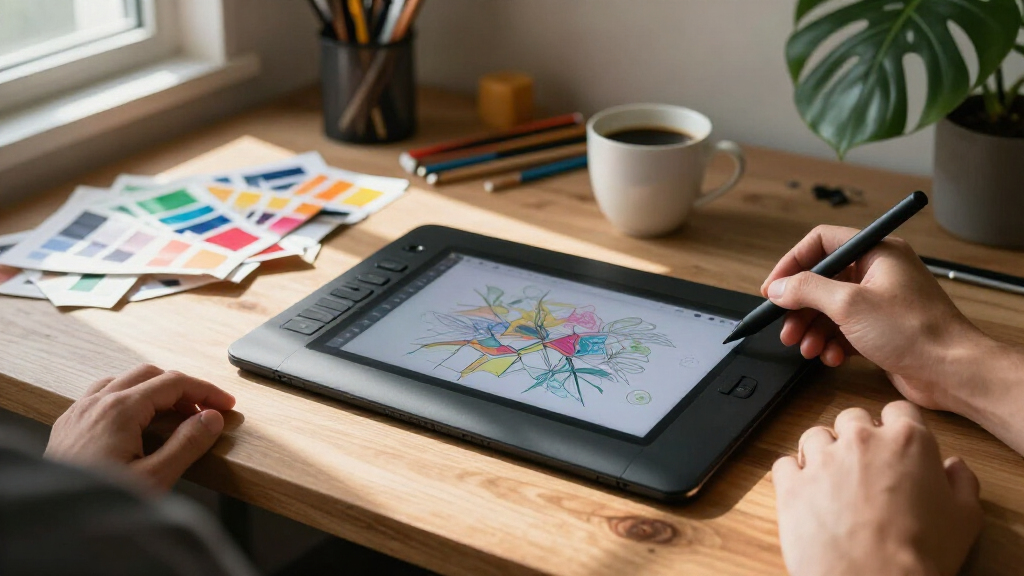
The best digital drawing tablets for artists depend on whether you want a direct-on-screen drawing experience, a larger workspace, or a tablet that works without a computer. My best overall pick is the HUION Kamvas 13 (Gen 3), which pairs a 13.3-inch display with dual dials and an adjustable stand. The XP-Pen Artist 15.6 Pro V2 suits artists who want more room to draw, while the HUION Inspiroy H1060P is a screen-free alternative with a generous working area. The main tradeoffs are screen versus portability, computer dependence versus standalone use, and workspace size versus desk space. Read on for how the 15 options compare and which type of artist each one suits.

Get art and craft supplies delivered free with Prime
- Fast, free delivery on millions of items
- Prime Video, Amazon Music and more included
- Member-only deals all year
Key Takeaways
- The Kamvas 13 (Gen 3) stands out for workflow controls: its dual dial and adjustable stand offer a more hands-on setup than simpler pen displays in this group.
- A larger screen is not automatically the better fit: 15.6-inch displays such as the Kamvas Pro 16 and Artist 15.6 Pro V2 need more desk space than the 11.6- to 13.3-inch choices.
- Screen-free tablets remain a distinct value choice: the UGEE M708 V3, HUION Inspiroy H1060P, and H640P avoid a built-in display, but ask artists to draw while looking at a separate monitor.
- Standalone models answer a different need: the Frunsi RubensTab T8 and T11 Pro and PicassoTab A10 are for artists who want to work without a computer, rather than desktop-style pen displays.
- XP-Pen’s Artist options overlap in size but differ in controls and generations: compare the 11.9-inch Artist 12 3rd models and 13.3-inch Artist choices by pen, surface, and shortcut features rather than screen size alone.
| UGEE M708 V3 Drawing Tablet, 10 x 6-Inch Active Area |  | Best Overall Pen Tablet | Active area: 10 x 6 inches | Stylus: Passive | Pressure sensitivity: 16,384 levels | VIEW LATEST PRICE | See Our Full Breakdown |
| HUION Inspiroy H1060P Graphics Drawing Tablet, 10 × 6.25-Inch Working Area |  | Best for Shortcut-Heavy Workflows | Working area: 10 × 6.25 inches | Thickness: 10 mm | Shortcut keys: 12 programmable press keys and 16 programmable soft keys | VIEW LATEST PRICE | See Our Full Breakdown |
| Frunsi RubensTab T8 8-Inch Standalone Drawing Tablet |  | Best Compact Standalone Pick | Screen size: 8 inches | Native resolution: 1200 × 800 | Operating system: Android 13 | VIEW LATEST PRICE | See Our Full Breakdown |
| Frunsi RubensTab T11 Pro Standalone Drawing Tablet |  | Best Standalone Display | Display: 10.1-inch Full HD IPS | Resolution: 1920 × 1200 | Processor: Octa-core CPU | VIEW LATEST PRICE | See Our Full Breakdown |
| HUION Inspiroy H640P Drawing Tablet, 6 x 4 Inch, 8192-Level Pressure Sensitivity |  | Best Compact Value | Active area: 6 x 4 inches | Pressure sensitivity: 8,192 levels | Resolution: 5080 LPI | VIEW LATEST PRICE | See Our Full Breakdown |
| XP-Pen Artist 13.3 Pro V2 Drawing Tablet with Screen, 16K Pressure Levels, Red Dial, and 8 Shortcut Keys |  | Best Overall for Hands-On Control | Screen: 13.3-inch Full HD IPS | Display surface: Full-laminated with anti-glare film | Stylus: X3 Pro, battery-free | VIEW LATEST PRICE | See Our Full Breakdown |
| PicassoTab A10 10-Inch Standalone Drawing Tablet |  | Best Standalone Pick for Beginners | Screen: 10-inch LCD | Resolution: 2000 × 1200 | Pen pressure: 4,096 levels | VIEW LATEST PRICE | See Our Full Breakdown |
| XP-PEN Artist 13.3 Pro V2 13.3-Inch Drawing Tablet with Screen |  | Best for Flexible Connections | Display: 13.3-inch, 1920 × 1080 FHD | Stylus: Battery-free X3 Pro Smart Chip Stylus (PD21C) | Pressure sensitivity: 16,384 levels | VIEW LATEST PRICE | See Our Full Breakdown |
| XP-Pen Artist 12 3rd 11.9-Inch Drawing Tablet with Screen, Pink, 16K Pressure Stylus |  | Best Compact Pen Display | Screen: 11.9 inches | Display surface: Full-laminated AG nano-etched glass with AF coating | Stylus: X4 magnetic, battery-free | VIEW LATEST PRICE | See Our Full Breakdown |
| HUION Kamvas Pro 16 Drawing Tablet with Screen, 15.6-Inch, 120% sRGB |  | Best for a Larger Drawing Canvas | Display: 15.6-inch, fully laminated anti-glare glass | Color gamut: 120% sRGB; 92% AdobeRGB | Color depth and contrast: 8-bit, 16.7 million colors; 1000:1 | VIEW LATEST PRICE | See Our Full Breakdown |
| XP-Pen Artist 13.3 Pro Drawing Tablet with Screen |  | Best for Shortcut-Driven Workflow | Display: 13.3-inch fully laminated Full HD | Color gamut: 88% NTSC; Adobe RGB ≥91%; sRGB ≥123% | Stylus: Battery-free with 60-degree tilt | VIEW LATEST PRICE | See Our Full Breakdown |
| XP-PEN Artist12 11.6-Inch FHD Drawing Pen Display |  | Best Entry-Level Compact Display | Display: 11.6-inch IPS, 1920 × 1080 | Color gamut: 72% NTSC; 100% sRGB | Stylus: Battery-free P06 passive pen with digital eraser | VIEW LATEST PRICE | See Our Full Breakdown |
| XP-Pen Artist 12 3rd Generation 11.9-Inch Drawing Tablet with Screen, X4 Pen, and AG Etched Glass |  | Best Compact Upgrade | Display: 11.9-inch, 1920 × 1080 | Display surface: AG etched glass with full lamination | Color: 99% sRGB; ΔE < 1.5 | VIEW LATEST PRICE | See Our Full Breakdown |
| XP-Pen Artist 15.6 Pro V2 Drawing Tablet with Screen |  | Best for a Larger Color-Critical Workspace | Display: 15.4-inch full-laminated anti-glare etched glass | Stylus pressure: 16,384 levels | Color gamut: 99% sRGB, 96% Adobe RGB, 96% Display P3 | VIEW LATEST PRICE | See Our Full Breakdown |
| HUION Kamvas 13 (Gen 3) 13.3-Inch Pen Display Drawing Tablet with Dual Dial and Adjustable Stand |  | Best Color-Calibrated 13.3-Inch Display | Display: 13.3-inch fully laminated Canvas Glass 2.0 | Color: 99% sRGB and Rec.709; average ΔE < 1.5 | Pen technology: PenTech 4.0 | VIEW LATEST PRICE | See Our Full Breakdown |
| digital drawing tablets for artist | Compatibility | Stylus | Connectivity | Display |
|---|---|---|---|---|
| UGEE M708 V3 Drawing Tablet | — | Passive | USB to USB-C; USB-C adapters included | — |
| HUION Inspiroy H1060P Graphics | Windows 7 or later, macOS 10.12 or later, Android 6.0 or later, Ubuntu with Xorg | PW100 battery-free stylus | — | — |
| Frunsi RubensTab T8 8-Inch Sta | — | — | — | — |
| Frunsi RubensTab T11 Pro Stand | — | — | Wi-Fi | 10.1-inch Full HD IPS |
| HUION Inspiroy H640P Drawing T | Mac, Windows, Linux, Android 6.0 or later; no iPhone or iPad support | Battery-free PW100 | — | — |
| XP-Pen Artist 13.3 Pro V2 Draw | Windows, macOS, Chrome OS, Android, Linux | X3 Pro, battery-free | — | — |
| PicassoTab A10 10-Inch Standal | — | — | — | — |
| XP-PEN Artist 13.3 Pro V2 13.3 | Windows, macOS, Chrome OS, Android, Linux | Battery-free X3 Pro Smart Chip Stylus (PD21C) | Full-featured USB-C; HDMI via separately sold 3-in-1 cable | 13.3-inch, 1920 × 1080 FHD |
| XP-Pen Artist 12 3rd 11.9-Inch | Windows, macOS, Android, ChromeOS, Linux, Windows ARM | X4 magnetic, battery-free | USB-C one-cable solution; 3-in-1 cable included | — |
| HUION Kamvas Pro 16 Drawing Ta | Windows 7 or later, macOS 10.12 or later, Linux (Ubuntu) | — | — | 15.6-inch, fully laminated anti-glare glass |
| XP-Pen Artist 13.3 Pro Drawing | Windows 7 or later, Mac OS X 10.10 or later, Chrome OS 88 or later, and Linux | Battery-free with 60-degree tilt | USB-C; 3-in-1 cable included | 13.3-inch fully laminated Full HD |
| XP-PEN Artist12 11.6-Inch FHD | Windows 7/8/10/11, Mac 10.10 or later, and Linux | Battery-free P06 passive pen with digital eraser | — | 11.6-inch IPS, 1920 × 1080 |
| XP-Pen Artist 12 3rd Generatio | Windows, macOS, Android 10 or later, ChromeOS 88 or later, Linux, and Windows ARM | — | USB-C; 3-in-1 multi-interface | 11.9-inch, 1920 × 1080 |
| XP-Pen Artist 15.6 Pro V2 Draw | Windows 7/8/10/11, macOS X 10.10 or later, and Chrome OS 88 or later | — | Computer connection; 3-in-1 cable included | 15.4-inch full-laminated anti-glare etched glass |
| HUION Kamvas 13 | Windows 10 or later, macOS 10.12 or later, compatible Android devices, and Ubuntu 20.04 LTS | — | 3-in-1 cable or full-featured USB-C | 13.3-inch fully laminated Canvas Glass 2.0 |
More Details on Our Top Picks
UGEE M708 V3 Drawing Tablet, 10 x 6-Inch Active Area
The UGEE M708 V3 is my strongest fit for artists who want a generous, textured drawing surface without adding a screen to the setup. Its 10 x 6-inch active area gives broad strokes more room than the compact HUION H640P, while the eight shortcut keys put common commands within reach. The passive stylus offers 16,384 pressure levels, a higher listed level count than the HUION Inspiroy H1060P, which may appeal to artists who want fine variation in line weight. That number alone does not determine drawing feel, though, and this remains a pen tablet: you draw on the surface while looking at a connected display. It also needs a compatible device and driver software, so it is less self-contained than the Frunsi RubensTab T11 Pro. I’d choose it for desktop-oriented drawing, not for standalone sketching.
Pros:- Large 10 x 6-inch textured active area suits broad gestures and detailed work.
- 16,384 pressure levels support varied line weight.
- Eight customizable shortcut keys can speed up repeated commands.
- Ambidextrous design and broad operating-system support offer flexible setup options.
Cons:- Requires a compatible computer or device and driver software.
- No built-in display, so the drawing surface and artwork appear in different places.
Best for: Artists who work at a computer and want a roomy, textured surface with customizable shortcuts.
Not ideal for: Artists who want to draw directly on a built-in screen or work without a connected computer or compatible device.
- Active area:10 x 6 inches
- Stylus:Passive
- Pressure sensitivity:16,384 levels
- Shortcut keys:8 customizable keys
- Connectivity:USB to USB-C; USB-C adapters included
- Operating systems:Windows, macOS, Android 10.0 or later, Chrome OS 88 or later, Linux
- Design:Ambidextrous
- Included accessories:Pen holder, extra pen tips, USB cable
Our verdict“Choose the UGEE M708 V3 for a roomy, shortcut-equipped pen tablet; pick the standalone Frunsi RubensTab T11 Pro if you need an onboard screen.”
HUION Inspiroy H1060P Graphics Drawing Tablet, 10 × 6.25-Inch Working Area
The HUION Inspiroy H1060P suits artists who would rather configure their workspace than reach for menus. Its standout feature is the control layout: 12 programmable press keys and 16 soft keys provide more shortcut options than the UGEE M708 V3’s eight physical keys. The 10 × 6.25-inch working area is also slightly larger, while the battery-free pen with ±60° tilt adds another input dimension for supported brush behavior. Its 8,192 pressure levels are below the UGEE’s listed 16,384, but a large key set may matter more to artists who rely on frequent tool changes. This model is a screenless tablet, unlike the Frunsi RubensTab T8, and it has specific compatibility limits: it does not support iPhone or iPad, and Ubuntu requires Xorg. I’d pick it for a computer-based workflow, not iPad drawing.
Pros:- 12 programmable press keys and 16 soft keys allow extensive shortcut customization.
- 10 × 6.25-inch working area provides room for broad strokes.
- Battery-free pen supports ±60° tilt and 8,192 pressure levels.
- Slim, symmetrical design works for left- and right-handed users.
Cons:- Does not support iPhone or iPad.
- Ubuntu compatibility requires the Xorg display server; Wayland is not supported.
- Unlike the Frunsi RubensTab T8, it needs a separate compatible device and has no built-in display.
Best for: Digital artists who use many keyboard shortcuts and want a large, customizable pen-tablet control surface.
Not ideal for: iPad or iPhone artists, and Ubuntu users whose setup depends on Wayland rather than Xorg.
- Working area:10 × 6.25 inches
- Thickness:10 mm
- Shortcut keys:12 programmable press keys and 16 programmable soft keys
- Stylus:PW100 battery-free stylus
- Tilt support:±60°
- Pressure levels:8,192
- Compatibility:Windows 7 or later, macOS 10.12 or later, Android 6.0 or later, Ubuntu with Xorg
- Included items:Tablet, pen, Micro USB cable, USB-C adapter, pen holder, 8 pen nibs, quick start guide
Our verdict“Pick the H1060P if programmable controls are a priority, but choose a standalone Frunsi tablet for drawing without a computer.”
Frunsi RubensTab T8 8-Inch Standalone Drawing Tablet
The Frunsi RubensTab T8 fills a different role from the UGEE M708 V3 and HUION H640P: it runs compatible drawing apps on Android 13, so there is no separate computer or pen display to connect. Its 8-inch screen makes it the most portable standalone option in this group, and 64GB of storage can expand to 256GB for apps and artwork. The tradeoff is a 1200 × 800 resolution, which offers less screen detail than the Full HD display listed for the larger Frunsi RubensTab T11 Pro. The T8 also lists 2,048 pressure levels, fewer than the pressure levels on the UGEE and HUION pen tablets. Its bundled keyboard, stylus, screen protector, and tutorials make it approachable, but I’d treat it as a portable entry point rather than a replacement for a larger, higher-resolution art display.
Pros:- Runs compatible drawing apps without a connected computer.
- Compact 8-inch form is suited to portable sketching.
- 64GB storage is expandable to 256GB.
- Includes a detachable keyboard, stylus, screen protector, and tutorials.
Cons:- 1200 × 800 display resolution is lower than the Frunsi RubensTab T11 Pro’s Full HD screen.
- Listed pressure sensitivity is 2,048 levels, below the UGEE M708 V3 and HUION H1060P.
- Processor details are inconsistent: the description says quad-core, while an item highlight says octa-core.
Best for: Beginning artists and mobile sketchers who want a self-contained Android drawing tablet with bundled accessories.
Not ideal for: Artists who need a large, high-resolution canvas or a pressure-level specification closer to the UGEE M708 V3.
- Screen size:8 inches
- Native resolution:1200 × 800
- Operating system:Android 13
- Processor:MTK quad-core CPU (processor description is inconsistent in product data)
- Memory:4GB RAM
- Storage:64GB, expandable to 256GB
- Battery:4000mAh; rated for up to 20 hours of drawing
- Pressure sensitivity:2,048 levels
- Included accessories:Detachable keyboard, stylus pen, screen protector, cleaning cloth
Our verdict“Choose the T8 for compact, standalone sketching and included learning aids; choose the T11 Pro for a larger, sharper display.”
Frunsi RubensTab T11 Pro Standalone Drawing Tablet
The Frunsi RubensTab T11 Pro is the better choice for artists who want to draw directly on a screen without pairing a pen display with a computer. Its 10.1-inch Full HD IPS display gives artwork more visible detail than the 8-inch, 1200 × 800 screen on the Frunsi RubensTab T8, and pre-installed drawing apps help shorten setup. The battery-free, pressure-sensitive pen also avoids stylus charging. In exchange for that standalone convenience, the listed battery life is up to five hours, well below the T8’s stated up-to-20-hour drawing claim. The screen is still modest in size compared with the larger screen-equipped XP-Pen and HUION models elsewhere in this roundup, and the available data does not specify a pressure-level count. I’d favor the T11 Pro for portable app-based drawing, while artists working on long sessions should plan around charging.
Pros:- Standalone design runs pre-installed drawing apps without a computer.
- 10.1-inch Full HD IPS display offers more detail than the Frunsi RubensTab T8’s 1200 × 800 screen.
- Battery-free pressure-sensitive pen does not require charging.
- Adjustable stand case supports desk use and travel.
Cons:- Battery life is rated for up to five hours per charge, shorter than the T8’s stated drawing time.
- The 10.1-inch screen may feel restrictive for large compositions.
- No pressure-level count is provided in the supplied product data.
Best for: Artists who want a standalone drawing device with a sharper screen than a compact entry-level tablet.
Not ideal for: Artists who need long stretches away from charging or a larger drawing surface for expansive projects.
- Display:10.1-inch Full HD IPS
- Resolution:1920 × 1200
- Processor:Octa-core CPU
- Battery capacity:5800 mAh
- Battery life:Up to 5 hours
- Charging:USB-C
- Pen:Battery-free pressure-sensitive pen
- Connectivity:Wi-Fi
- Included items:Digital pen, stylus, glove, cleaning cloth, adjustable stand case
Our verdict“Choose the T11 Pro for standalone drawing with a Full HD screen, but favor the T8 if its longer stated battery life matters more than display resolution.”
HUION Inspiroy H640P Drawing Tablet, 6 x 4 Inch, 8192-Level Pressure Sensitivity
The HUION Inspiroy H640P is the compact pick for artists whose desk space or travel bag rules out a full-size tablet. Its 6 x 4-inch active area is much smaller than the UGEE M708 V3’s 10 x 6-inch surface, so it favors wrist-led strokes, editing, and quick sketches over broad arm movements. The battery-free PW100 stylus has 8,192 pressure levels, and six customizable keys provide handy controls without the H1060P’s larger array of 28 programmable keys. At 0.61 pounds and 0.3 inches thick, it is easy to carry, but the compact drawing area is a genuine limit for artists who work on expansive canvases. It connects to supported computers and Android devices rather than working as a standalone screen, and it does not support iPhone or iPad.
Pros:- Lightweight 0.61-pound body and slim 0.3-inch profile suit travel.
- Battery-free PW100 stylus offers 8,192 pressure levels.
- Six customizable keys support app-specific shortcuts.
- Works with Mac, Windows, Linux, and Android 6.0 or later.
Cons:- 6 x 4-inch active area is substantially smaller than the UGEE M708 V3’s drawing surface.
- Does not support iPhone or iPad.
- Requires a separate compatible device and does not have a built-in display.
Best for: Traveling artists, photo editors, and note-takers who need a lightweight pen tablet for compact work areas.
Not ideal for: Artists who prefer large, sweeping strokes, want an on-device screen, or draw on iPhone and iPad.
- Active area:6 x 4 inches
- Pressure sensitivity:8,192 levels
- Resolution:5080 LPI
- Report rate:233 PPS
- Shortcut keys:6 customizable keys
- Stylus:Battery-free PW100
- Compatibility:Mac, Windows, Linux, Android 6.0 or later; no iPhone or iPad support
- Weight and thickness:0.61 lbs; 0.3 inches
- Included accessories:Digital pen, pen holder with 8 replacement nibs, cleaning cloth, quick start guide, USB cable
Our verdict“Pick the H640P for a portable, compact pen tablet, but choose the UGEE M708 V3 if you need more room for full-arm drawing.”
XP-Pen Artist 13.3 Pro V2 Drawing Tablet with Screen, 16K Pressure Levels, Red Dial, and 8 Shortcut Keys
The Artist 13.3 Pro V2 is a well-rounded choice for artists who want to draw directly on screen without giving up physical workflow controls. Its 16,384-level battery-free stylus and laminated, anti-glare display support precise, expressive strokes, while the red dial and eight programmable keys put frequent commands close at hand. Compared with the smaller XP-Pen Artist 12 3rd, its 13.3-inch canvas gives palettes and artwork more breathing room; the HUION Kamvas Pro 16 goes larger, but takes up more desk space. This XP-Pen is still a computer-connected display, not a standalone tablet, so it suits a studio or desk setup better than drawing on the go. Its color-temperature adjustment is Windows-only, and Linux users need driver support.
Pros:- Laminated, anti-glare display helps reduce glare and the visible gap between pen tip and cursor.
- Battery-free stylus offers 16,384 pressure levels for nuanced line weight.
- Red dial and eight customizable keys provide direct access to common drawing commands.
- Included stand adjusts up to 90 degrees for different drawing positions.
Cons:- Must connect to a compatible computer or device; it cannot run drawing apps on its own.
- Color-temperature adjustment is limited to Windows.
- Linux use depends on driver support.
Best for: Illustrators who work at a desk, want a medium-size on-screen canvas, and rely on shortcuts and a dial to speed up repetitive tasks.
Not ideal for: Artists who need a self-contained travel tablet, or users who want color-temperature controls across operating systems.
- Screen:13.3-inch Full HD IPS
- Display surface:Full-laminated with anti-glare film
- Stylus:X3 Pro, battery-free
- Pressure levels:16,384
- Color gamut:125% sRGB, 107% Adobe RGB, 95% Display P3
- Controls:Red dial and 8 customizable keys
- Brightness and contrast:250 cd/m²; 1000:1
- Compatibility:Windows, macOS, Chrome OS, Android, Linux
Our verdict“Choose this XP-Pen if you want a desk-friendly pen display with strong shortcut controls and a more spacious canvas than compact models.”
PicassoTab A10 10-Inch Standalone Drawing Tablet
The PicassoTab A10 is the clearest choice here for artists who want to draw without attaching a computer. Its Android 14 system, preloaded creative apps and guided lessons make it approachable for beginners, while 6GB of RAM and expandable storage leave room for apps and projects. That independence sets it apart from the XP-Pen Artist 13.3 Pro V2 and HUION Kamvas Pro 16, which need a connected computer to work. The tradeoff is a 10-inch drawing area: it is easier to carry than those pen displays, but offers less room for detailed compositions and interface panels. Its 4,096-level pen sensitivity is lower than the 16,384-level styluses in the XP-Pen models, and the product data does not specify how long software updates will continue.
Pros:- Runs drawing apps independently without a computer connection.
- Includes five creative apps, guided lessons, and lifetime upgrades for Concepts PRO and Artixo VIP.
- Laminated display helps reduce glare and parallax for a more direct drawing feel.
- Expandable storage supports up to 1TB.
Cons:- The 10-inch screen can feel cramped for detailed artwork or multitasking.
- Pen sensitivity is 4,096 levels, below the 16,384 levels offered by the listed XP-Pen displays.
- Software update support duration is unspecified.
Best for: New digital artists, students, and casual illustrators who want a portable tablet with drawing apps and lessons built in.
Not ideal for: Artists who need a larger canvas, high-end pen sensitivity, or a predictable long-term software update schedule.
- Screen:10-inch LCD
- Resolution:2000 × 1200
- Pen pressure:4,096 levels
- Processor and memory:Octa-core processor; 6GB RAM
- Storage:64GB, expandable up to 1TB
- Operating system:Android 14
- Included software:Five creative apps; Concepts lifetime PRO and Artixo lifetime VIP upgrades
- Weight:1.5 kg
Our verdict“Pick the PicassoTab A10 if standalone convenience and beginner guidance matter more than a large canvas or the highest pen sensitivity.”
XP-PEN Artist 13.3 Pro V2 13.3-Inch Drawing Tablet with Screen
This listing of the XP-PEN Artist 13.3 Pro V2 makes the most sense for artists who want a familiar 13.3-inch pen display with flexible connection options. The full-featured USB-C input can simplify a compatible setup, and the red dial, eight shortcut keys, and 16,384-level battery-free stylus provide hands-on control for illustration work. Unlike the standalone PicassoTab A10, this is a display that relies on a computer or compatible device; compared with the larger HUION Kamvas Pro 16, it takes up less desk space but gives up some drawing area. It can also operate as a pen tablet with its screen off, which may suit artists who prefer a separate monitor. Check device compatibility before buying: USB-C video requires supported hardware, and the 3-in-1 HDMI cable is sold separately.
Pros:- Full-laminated screen is designed to reduce parallax while drawing.
- Battery-free stylus provides 16,384 pressure levels and includes a digital eraser.
- Red dial and eight customizable keys offer direct workflow controls.
- Can be used in pen tablet mode with the display turned off.
Cons:- Requires a connected computer or compatible device.
- Full-featured USB-C video requires a compatible USB 3.1 DP 1.2 device.
- Traditional HDMI connection requires a separately sold 3-in-1 cable.
Best for: Artists with a compatible full-featured USB-C device who want a medium-size pen display that can also work as a screen-off pen tablet.
Not ideal for: Buyers seeking standalone operation or those whose HDMI-only computer setup would require a cable they do not want to purchase separately.
- Display:13.3-inch, 1920 × 1080 FHD
- Stylus:Battery-free X3 Pro Smart Chip Stylus (PD21C)
- Pressure sensitivity:16,384 levels
- Color gamut:99% sRGB, 89% Adobe RGB, 95% P3
- Controls:Red dial roller and 8 customizable shortcut keys
- Connectivity:Full-featured USB-C; HDMI via separately sold 3-in-1 cable
- Compatibility:Windows, macOS, Chrome OS, Android, Linux
- Warranty:1 year
Our verdict“Choose this version if your device supports full-featured USB-C and you value connection flexibility and an optional screen-off workflow.”
XP-Pen Artist 12 3rd 11.9-Inch Drawing Tablet with Screen, Pink, 16K Pressure Stylus
The Artist 12 3rd prioritizes a compact drawing setup without stripping away the controls that make a pen display useful. Its 11.9-inch laminated, anti-glare screen is smaller than the XP-Pen Artist 13.3 Pro V2, so it takes less desk space but leaves less room for artwork and tool panels. The battery-free X4 stylus supports 16,384 pressure levels and ±60° tilt, while dual roller wheels and eight shortcut keys offer more tactile adjustment options than a basic pen display. The included foldable stand and both USB-C and 3-in-1 cables make it flexible to set up, but it still depends on a connected computer or compatible device. Its 99% sRGB coverage suits many illustration workflows, though the specs do not claim the wider gamut figures listed for the Artist 13.3 Pro V2.
Pros:- Compact 11.9-inch laminated, anti-glare screen helps reduce the apparent gap between pen and cursor.
- Battery-free stylus offers 16,384 pressure levels and ±60° tilt recognition.
- Dual roller wheels and eight shortcut keys provide hands-on adjustments.
- Includes a foldable stand, USB-C cable, and 3-in-1 cable.
Cons:- Smaller drawing area than the 13.3-inch XP-Pen Artist 13.3 Pro V2 and 15.6-inch HUION Kamvas Pro 16.
- Requires a connected computer or compatible device.
- Listed color coverage is 99% sRGB, with no broader gamut figures provided.
Best for: Illustrators with limited desk space who want a compact pen display, tactile controls, and compatibility across several operating systems.
Not ideal for: Artists who need a large working surface or a standalone tablet they can use without a computer or compatible device.
- Screen:11.9 inches
- Display surface:Full-laminated AG nano-etched glass with AF coating
- Stylus:X4 magnetic, battery-free
- Pressure and tilt:16,384 levels; ±60° tilt
- Color gamut:99% sRGB
- Controls:Dual roller wheels and 8 shortcut keys
- Connectivity:USB-C one-cable solution; 3-in-1 cable included
- Compatibility:Windows, macOS, Android, ChromeOS, Linux, Windows ARM
Our verdict“Choose the Artist 12 3rd if saving desk space and gaining dual rollers matter more than having a larger canvas or standalone use.”
HUION Kamvas Pro 16 Drawing Tablet with Screen, 15.6-Inch, 120% sRGB
The HUION Kamvas Pro 16 is the canvas-first pick in this group. Its 15.6-inch laminated, anti-glare screen gives complex illustrations and interface panels more room than the 13.3-inch XP-Pen Artist 13.3 Pro V2 or compact Artist 12 3rd. A textured drawing surface, battery-free pen with 60° tilt, six express keys, and a touch bar suit artists who want a broad workspace and direct controls. Its listed 120% sRGB and 92% AdobeRGB coverage also make it a useful option for color-focused work. The tradeoff is a larger, wired desk setup: it must connect to a computer, and its 3-in-1 cable carries the HDMI signal. Compared with the PicassoTab A10, it offers a much larger working display, but cannot run drawing apps independently.
Pros:- 15.6-inch laminated, anti-glare display provides more room than the 11.9- and 13.3-inch pen displays here.
- Textured drawing surface offers a less slick feel than plain glass.
- Battery-free pen includes 60° tilt recognition and two programmable side buttons.
- Six customizable express keys, touch bar, and adjustable stand support varied workflows.
Cons:- Requires a connected computer or laptop and cannot operate as a standalone tablet.
- Uses a wired 3-in-1 connection with HDMI signal rather than a wireless setup.
- Six express keys provide fewer physical shortcut buttons than the eight-key XP-Pen models.
Best for: Desk-based illustrators who want a larger on-screen workspace, textured drawing surface, and adjustable stand for longer sessions.
Not ideal for: Artists who need a standalone or highly portable tablet, or who want a simple wireless setup.
- Display:15.6-inch, fully laminated anti-glare glass
- Color gamut:120% sRGB; 92% AdobeRGB
- Color depth and contrast:8-bit, 16.7 million colors; 1000:1
- Pen:Battery-free PW507 with 60° tilt recognition and 2 programmable side buttons
- Controls:6 customizable express keys and touch bar
- Stand:Foldable ST200, adjustable from 20° to 60°
- Connection:3-in-1 USB-C cable with HDMI signal
- Compatibility:Windows 7 or later, macOS 10.12 or later, Linux (Ubuntu)
Our verdict“Pick the Kamvas Pro 16 if you want the largest on-screen workspace in this batch and are comfortable with a wired, computer-connected setup.”
XP-Pen Artist 13.3 Pro Drawing Tablet with Screen
The Artist 13.3 Pro is a good fit for artists who want a screen tablet with dedicated controls without moving to a larger, desk-dominating display. Its fully laminated 13.3-inch Full HD screen is designed to keep the cursor closer to the pen tip, while the tilt-sensitive, battery-free stylus supports more natural line variation. The red dial and eight shortcut keys give it a more hands-on workflow than the more compact XP-PEN Artist12, which has a touch bar and six keys. That extra control area may help artists who regularly change brush size or canvas zoom. The tradeoff is a smaller work surface than the Artist 15.6 Pro V2, and this display must stay connected to a computer. I’d choose it for control access and a manageable footprint, not for standalone drawing or expansive canvas space.
Pros:- Fully laminated Full HD display is designed to reduce the gap between the pen tip and cursor.
- Battery-free stylus supports 60-degree tilt for varied stroke rendering.
- Red dial and eight customizable keys provide direct access to common drawing controls.
- Includes a foldable stand, replacement nibs, and compatibility with several major operating systems.
Cons:- Requires a connected computer, so it cannot function as a standalone drawing tablet.
- The 13.3-inch screen offers less working room than the 15.4-inch Artist 15.6 Pro V2.
Best for: Digital illustrators who want a compact computer-connected display with a dial and several customizable shortcuts for frequent tool changes.
Not ideal for: Artists who prefer a large drawing surface or want to sketch without a computer; the 13.3-inch screen can feel confined, and the tablet is not standalone.
- Display:13.3-inch fully laminated Full HD
- Color gamut:88% NTSC; Adobe RGB ≥91%; sRGB ≥123%
- Stylus:Battery-free with 60-degree tilt
- Controls:Red dial, 8 display shortcut keys, 2 stylus shortcut keys
- Connectivity:USB-C; 3-in-1 cable included
- Viewing angle:178 degrees
- Compatibility:Windows 7 or later, Mac OS X 10.10 or later, Chrome OS 88 or later, and Linux
- Included accessories:Foldable stand, drawing glove, cleaning cloth, cables, power adapter, pen holder, and replacement nibs
Our verdict“Choose the Artist 13.3 Pro if you want a compact pen display with a useful dial-and-shortcut layout and do not need a standalone or large-screen setup.”
XP-PEN Artist12 11.6-Inch FHD Drawing Pen Display
The XP-PEN Artist12 suits artists who want a screen to draw directly on but would rather keep the tablet small and the controls simple. Its 11.6-inch Full HD IPS display is paired with a programmable touch bar and six shortcut keys, offering useful access to common commands without the dial-focused layout of the Artist 13.3 Pro. The battery-free pen has 8192 pressure levels and a digital eraser, while the pre-installed anti-reflective protector helps manage screen glare. Compared with the newer Artist 12 3rd, this model has fewer controls and lacks the described AG etched glass and 16,384-level pen. Its smaller screen can also feel tight when working on detailed compositions. I’d pick it as a straightforward computer-connected option for learning digital illustration, provided the computer has HDMI and USB-A ports or suitable adapters.
Pros:- Full HD IPS screen provides a direct-on-display drawing surface.
- Battery-free pen includes a digital eraser and 8192 pressure levels.
- Touch bar and six customizable keys provide convenient access to drawing commands.
- Includes a screen protector, glove, pen holder, and eight replacement nibs.
Cons:- The 11.6-inch display leaves limited room for detailed artwork and interface panels.
- Requires a computer and HDMI plus USB-A ports, or suitable adapters.
- Offers fewer pen and surface refinements than the Artist 12 3rd.
Best for: New digital artists, students, and instructors who want a compact pen display for computer-based drawing, editing, or demonstrations.
Not ideal for: Artists who want a larger canvas, newer-generation drawing controls, or a simple single-cable setup without checking their computer ports.
- Display:11.6-inch IPS, 1920 × 1080
- Color gamut:72% NTSC; 100% sRGB
- Stylus:Battery-free P06 passive pen with digital eraser
- Pen pressure:8192 levels
- Controls:Programmable touch bar and 6 customizable shortcut keys
- Connection requirements:Computer with HDMI and USB-A ports, or suitable adapters
- Compatibility:Windows 7/8/10/11, Mac 10.10 or later, and Linux
- Included accessories:PN06 multi-function pen holder, glove, and 8 replacement nibs
- Warranty:1 year
Our verdict“Pick the Artist12 if you want a compact, uncomplicated screen tablet for computer-based drawing and can work comfortably on an 11.6-inch display.”
XP-Pen Artist 12 3rd Generation 11.9-Inch Drawing Tablet with Screen, X4 Pen, and AG Etched Glass
For artists who want a small display but care about drawing feel and control options, the Artist 12 3rd is a more refined compact choice than the older XP-PEN Artist12. Its AG etched glass and full lamination are designed to cut glare and reduce the visible gap between nib and cursor, while the X4 pen adds 16,384 pressure levels, tilt support, and low initial activation force. Dual dial wheels plus eight customizable keys give it more physical controls than the touch bar and six keys on the Artist12. Its 11.9-inch Full HD workspace remains the central compromise: it is portable, but less suited to expansive compositions or keeping multiple panels open. The broad device compatibility is useful, though it still needs a connected computer or compatible device. I’d choose it for portability and tactile controls rather than screen size.
Pros:- AG etched glass and full lamination are designed to reduce glare and pen-to-cursor parallax.
- X4 pen supports 16,384 pressure levels, 60-degree tilt, and 2 g initial pressure.
- Dual dial wheels and eight customizable keys provide flexible on-device controls.
- Supports a wide range of operating systems, including Android and Windows ARM.
Cons:- The 11.9-inch screen can feel cramped for complex artwork or expanded software panels.
- Requires a cable connection to a compatible computer or device.
- Full HD resolution gives less workspace than the larger Artist 15.6 Pro V2.
Best for: Illustrators who travel between workspaces and want an 11.9-inch display with etched glass, responsive pen input, and physical dial controls.
Not ideal for: Artists who need a broad canvas for large compositions or want a standalone tablet that works without a connected device.
- Display:11.9-inch, 1920 × 1080
- Display surface:AG etched glass with full lamination
- Color:99% sRGB; ΔE < 1.5
- Pen:X4 Chip Digital Pen with 16,384 pressure levels and 60-degree tilt
- Initial pen pressure:2 g
- Controls:Dual X-Dial wheels and 8 customizable keys
- Weight:1.58 lb
- Connectivity:USB-C; 3-in-1 multi-interface
- Compatibility:Windows, macOS, Android 10 or later, ChromeOS 88 or later, Linux, and Windows ARM
Our verdict“Choose the Artist 12 3rd if portability, etched glass, and a well-equipped control layout matter more than having a large drawing area.”
XP-Pen Artist 15.6 Pro V2 Drawing Tablet with Screen
The Artist 15.6 Pro V2 is the screen-first pick here: its 15.4-inch display gives artists more room for strokes and software panels than the compact Artist 12 3rd or the 13.3-inch displays. That extra area can make long sessions and detailed compositions less cramped. Its fully laminated anti-glare etched glass, 16,384-level pressure stylus, control dial, and eight shortcut keys make it a strong fit for artists who want both a larger canvas and direct controls. The listed 99% sRGB, 96% Adobe RGB, and 96% Display P3 coverage also make its color range broader on paper than the Artist 12 3rd’s 99% sRGB specification. The cost of the larger workspace is a less portable setup, and it remains computer-dependent. Compatibility is listed for Windows, macOS, and Chrome OS, not Linux or Android.
Pros:- 15.4-inch display offers more drawing room than the 11.9-inch Artist 12 3rd.
- Full lamination and anti-glare etched glass are designed to reduce glare and pen-to-cursor parallax.
- Broad listed gamut covers 99% sRGB, 96% Adobe RGB, and 96% Display P3.
- Control dial, eight customizable keys, and an adjustable stand support a more ergonomic workflow.
Cons:- Must connect to a computer and is less convenient to carry than the smaller Artist 12 3rd.
- Listed operating-system compatibility omits Linux and Android.
- The 250 cd/m² brightness may be limiting in brightly lit workspaces.
Best for: Digital illustrators and designers who work at a desk, want room for a larger canvas and interface panels, and value broad color-gamut coverage.
Not ideal for: Artists who need a highly portable or standalone setup, or users whose workflow depends on Linux or Android compatibility.
- Display:15.4-inch full-laminated anti-glare etched glass
- Stylus pressure:16,384 levels
- Color gamut:99% sRGB, 96% Adobe RGB, 96% Display P3
- Display colors:16.7 million
- Brightness and contrast:250 cd/m²; 1000:1
- Controls:Control dial and 8 customizable keys
- Stand:Foldable and adjustable up to 90 degrees
- Connectivity:Computer connection; 3-in-1 cable included
- Compatibility:Windows 7/8/10/11, macOS X 10.10 or later, and Chrome OS 88 or later
Our verdict“Choose the Artist 15.6 Pro V2 if you want a larger, color-capable desk display and can accept computer-dependent use and limited listed OS support.”
HUION Kamvas 13 (Gen 3) 13.3-Inch Pen Display Drawing Tablet with Dual Dial and Adjustable Stand
The HUION Kamvas 13 (Gen 3) stands out among the 13-inch options for its color specifications and included desk setup. Its laminated Canvas Glass 2.0 screen lists 99% sRGB and Rec.709 coverage, factory calibration, and average ΔE below 1.5, making it a compelling choice for artists who want more color confidence than the XP-Pen Artist 13.3 Pro’s listed gamut figures provide. The PenTech 4.0 pen adds 16,384 pressure levels, low activation force, and three side buttons; five shortcut keys and dual dials add more control than the six-key layout on the older XP-PEN Artist12. An adjustable stand is included, which helps create a more comfortable drawing angle without a separate purchase. This is still a connected pen display, and Android support depends on compatible USB and DisplayPort standards. It offers a balanced alternative to the larger Artist 15.6 Pro V2, but with less canvas space.
Pros:- Laminated Canvas Glass 2.0 lists 99% sRGB and Rec.709 coverage with average ΔE below 1.5.
- PenTech 4.0 pen supports 16,384 pressure levels, 2 g initial activation force, and three side buttons.
- Five programmable keys and dual dial buttons provide direct workflow controls.
- Includes an adjustable stand and supports Windows, macOS, compatible Android devices, and Ubuntu 20.04 LTS.
Cons:- Requires connection to a computer or compatible device; it is not standalone.
- Android use is limited to devices with USB 3.1 Gen 1 and DisplayPort 1.2 support.
- The 13.3-inch display provides less working space than the Artist 15.6 Pro V2.
Best for: Illustrators who want a 13.3-inch computer-connected display with specified color calibration, programmable controls, and an included adjustable stand.
Not ideal for: Artists who want a standalone device, a larger canvas, or Android compatibility without checking their device’s USB 3.1 Gen 1 and DisplayPort 1.2 support.
- Display:13.3-inch fully laminated Canvas Glass 2.0
- Color:99% sRGB and Rec.709; average ΔE < 1.5
- Pen technology:PenTech 4.0
- Pressure sensitivity:16,384 levels; 2 g initial activation force
- Pen controls:3 side buttons
- Tablet controls:5 programmable keys and dual dial buttons
- Connectivity:3-in-1 cable or full-featured USB-C
- Compatibility:Windows 10 or later, macOS 10.12 or later, compatible Android devices, and Ubuntu 20.04 LTS
- Included accessories:Adjustable stand, cables, pen holder, 10 nibs, cleaning cloth, glove, and PW600L pen
Our verdict“Choose the Kamvas 13 (Gen 3) if you want color-calibrated specifications and useful physical controls in a compact pen display, rather than a larger or standalone tablet.”
How We Picked
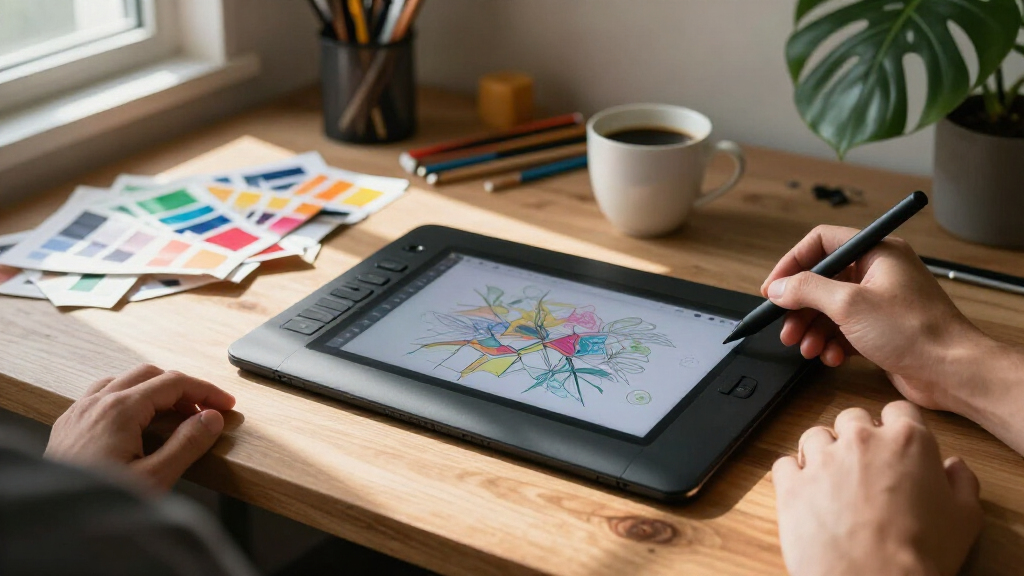
I compared the 15 tablets by how well their design fits an artist’s actual workflow: drawing directly on a screen, using a screen-free surface with a computer, or working on a standalone device. I weighed active area or display size, pen features, shortcut controls, screen surface, portability, setup requirements, and the practical impact of each model’s form factor. A feature mattered most when it changed how comfortably or efficiently an artist could sketch, paint, or make detailed edits.
The ranking favors versatility and a strong balance of drawing experience, controls, and usability, which places the HUION Kamvas 13 (Gen 3) first. The screen-free tablets rank as focused alternatives rather than lesser versions of pen displays; standalone tablets are judged by their independence from a computer. Within the crowded XP-Pen Artist lineup, I distinguish models by generation, included workflow features, and display size, while noting that buyers should verify the exact version and specifications before choosing.
Factors to Consider When Choosing Digital Drawing Tablets For Artists
Before choosing a tablet, I would start with how and where you draw—not the largest screen or the highest listed pen specification. The right category can matter more than small feature differences between models. These factors help identify which compromises will affect your day-to-day work.
Choose a Drawing Style Before Comparing Features
A pen display lets you draw where you see the marks, while a screen-free tablet separates your hand from the computer display. That hand-eye adjustment can feel unfamiliar at first, but some artists prefer the upright posture and open desk setup it allows. A standalone tablet removes the computer from the drawing setup, though its operating system and app selection may differ from a desktop workflow. Avoid buying a screen model simply because it seems more advanced if you value a compact setup or already draw comfortably on a monitor. First decide which interaction style you want, then compare models within that group.
Match Workspace Size to the Work You Make
A bigger active area can make long strokes and broad gestures more comfortable, but it also takes up more room and can require larger arm movements. Small tablets may suit travel, annotation, or detail work, while a cramped drawing surface can feel limiting for expressive illustration. Display size and active drawing area are not interchangeable: bezels and interface panels affect how much room remains for the canvas. Think about your typical posture and whether you draw from the wrist, elbow, or shoulder. If possible, measure your desk and compare the tablet’s footprint, not only its advertised screen diagonal.
Check Compatibility and Connection Needs Early
A pen display is generally a screen for a connected computer, not a standalone computer, so verify the required ports, cables, operating system support, and drawing software before purchase. A single-cable connection may depend on a compatible USB-C port and its video capabilities; the connector shape alone does not confirm support. Screen-free models also need a compatible computer and driver setup. Standalone tablets avoid that connection requirement but may not run the same desktop applications or fit the same file workflow. Checking these details first can prevent a tablet that fits your drawing style from failing to fit your existing equipment.
Treat Pen Specifications as One Part of the Feel
Pressure-level figures can help distinguish generations, but they do not describe the whole drawing experience. Pen response, tilt support, driver behavior, nib choice, and how well pressure settings suit your hand all affect line control. A high specification cannot compensate for a surface that feels wrong to you or a pen that is uncomfortable during long sessions. Shortcut buttons and dials may matter more than extra pressure steps if your workflow uses frequent brush-size or zoom changes. Prioritize the controls you will use every day, and check whether the pen or replacement nibs are easy to obtain for the exact model.
Decide How Much Screen and Surface Matter
Artists who rely on color decisions should check display coverage and calibration options rather than assuming every pen display shows color the same way. A matte or etched surface can reduce glare and add texture, but it can also change the feel of the stylus and may wear nibs differently. Glossy screens can look clearer in some setups but may reflect room lighting. Screen size also affects how much space is left for tool panels when the drawing app is open. If color accuracy is central to your work, plan to calibrate the display and check final artwork on another screen before delivery.
Pay for Workflow Improvements, Not a Longer Feature List
Spending more makes sense when it buys a benefit you will use repeatedly, such as a larger canvas, adjustable stand, integrated controls, or freedom from a computer. It is harder to justify paying for features that do not address your main limitation. Beginners may gain more from a comfortable size and simple setup than from advanced controls they have not learned to use. Professionals should weigh downtime, compatibility, and how the tablet fits their software and file handoff process. Leave room in your decision for a stand, cables, replacement nibs, or a carrying case if those are not included with the model you choose.
Frequently Asked Questions
Should I choose a pen display or a screen-free drawing tablet?
Choose a pen display if drawing directly on the image feels central to your process and you have a compatible computer to connect it to. A screen-free tablet can be a better fit when you want a lighter, simpler drawing surface or prefer to keep your eyes on a larger monitor. The hand-eye coordination takes practice, so a new user should allow time to adapt rather than judging the format after a brief session. Screen-free models also avoid display glare and color-calibration concerns. The deciding factor is whether direct visual contact or a compact computer-based setup matters more to you.
Can I use a pen display without a computer?
Most pen displays in this roundup are designed to connect to a computer; their screens do not mean they can run drawing software on their own. The Frunsi RubensTab T8 and T11 Pro and the PicassoTab A10 are standalone options in this selection, so they address a different setup. Before choosing one, check whether its software supports the brushes, file types, and export steps you rely on. A standalone device can simplify drawing away from a desk, but it may not replace a computer for every part of an illustration workflow. If you need desktop applications, confirm that the tablet can connect to and work with your computer as intended.
Is a 13.3-inch display large enough for professional illustration?
A 13.3-inch pen display can support detailed illustration, but the usable canvas depends on resolution, interface layout, and how much screen space your app’s panels occupy. Artists who keep many tools open or prefer broad arm movements may find a 15.6-inch model more comfortable. The larger display also takes more desk space and can be less convenient to move. If you often work with the interface hidden or zoom into sections, a smaller display may remain practical. Think about your app layout and posture before treating screen size as a measure of professional suitability.
Do higher pressure-level numbers guarantee better lines?
No. Pressure-level figures describe one part of stylus input, but they do not tell you how natural the pen feels, how reliably the driver responds, or how well the pressure curve matches your hand. A comfortable grip, suitable nib, tilt behavior, and the ability to tune pressure can make a greater difference to everyday line control. The Artist models in this roundup include newer 16K-pressure options, while several other tablets list different pen specifications; compare the full pen experience rather than the number alone. If possible, check the exact model generation and supported software before purchase.
How do I choose between similar XP-Pen Artist 12 and Artist 13.3 models?
Start by separating screen size from generation: the Artist 12 choices here include an 11.6-inch model and 11.9-inch 3rd-generation options, while the Artist 13.3 line has multiple versions. Then compare the specific pen, screen surface, shortcut controls, and connection needs listed for the exact product. A newer generation may add a different stylus or etched surface, but those changes only matter if they suit your hand and drawing habits. Confirm the model name carefully because similar product names can refer to meaningfully different configurations. Choose the smallest model that leaves enough room for your canvas and interface, especially if portability matters.
Conclusion
For most artists who want a computer-connected pen display with useful workflow controls, I recommend the HUION Kamvas 13 (Gen 3) as best overall. The HUION Inspiroy H1060P is my best value-style pick for artists comfortable drawing on a separate monitor, while the XP-Pen Artist 15.6 Pro V2 is the best premium fit for those who want a larger drawing surface. Beginners who want direct-on-screen drawing can start with a compact Artist 12 option; anyone seeking independence from a computer should compare the Frunsi RubensTab models and PicassoTab A10. Choose by workflow first: a standalone tablet, screen-free pad, and connected pen display solve different problems, and the best match is the one that fits your software, desk, and drawing habits.