TL;DR
Digital drawing tablets let you control a digital brush with a stylus, using features such as pressure and tilt to create varied strokes. Choose a screenless tablet for low-cost computer drawing, a pen display to draw on the image, or a standalone tablet for portability. Match the device to your software, workspace, and preferred pen feel; a high pressure-level count alone does not guarantee better art.
A mouse can move a cursor across a canvas, but it rarely feels like a pencil gliding through a warm-up sketch. A stylus gives your hand a more familiar way to steer a digital brush, and pressure-sensitive strokes can shift from a whisper-thin line to a dark, broad mark in one gesture.

Get art and craft supplies delivered free with Prime
- Fast, free delivery on millions of items
- Prime Video, Amazon Music and more included
- Member-only deals all year
Digital drawing tablets for artists come in three broad forms: screenless pen tablets, pen displays, and standalone tablets. The right choice depends on whether you already have a computer, want to see your line under the pen, or need to draw away from your desk.
This guide explains what each device does, which features affect everyday drawing, and how to make a choice that suits your actual work. You’ll also get a simple buying checklist, so you can spend on the parts you’ll feel every day instead of chasing numbers that may not change your art.
Choose a screenless tablet if you already own a computer and are comfortable learning to draw while watching a separate monitor.
Pick a pen display to draw directly on the image, or a standalone tablet if portability and its supported apps matter most.
Compare pen feel, screen clarity, active area, posture, and compatibility; pressure-level counts alone don’t tell you how a tablet will feel.
Check the exact device, operating system, driver, app, and cable requirements before buying.
Try the tablet or check its return policy, and include accessories such as a stand, nibs, protector, or adapter in your budget.
See how a stylus turns your hand into a digital brush
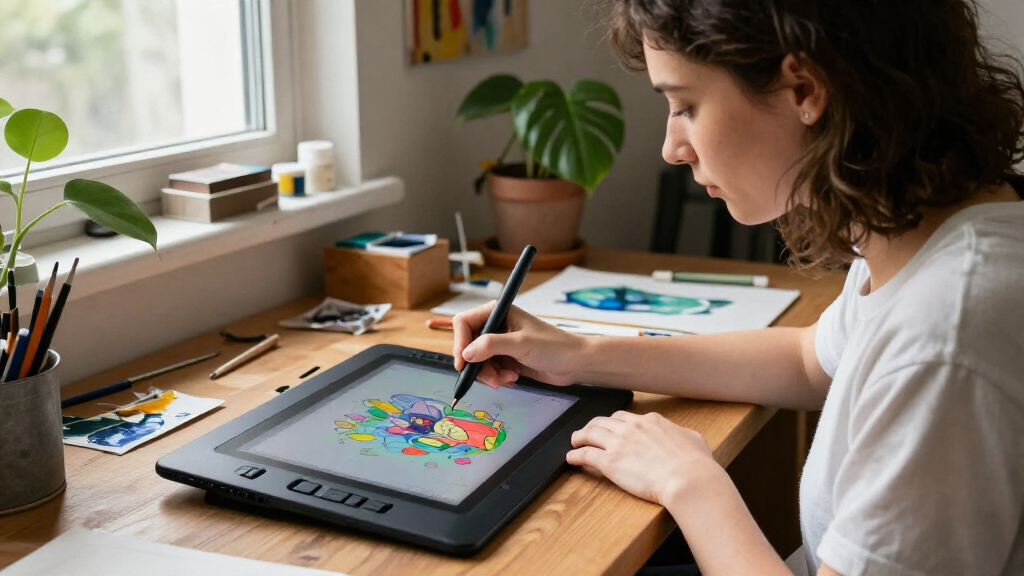
A drawing tablet lets you control a digital brush or cursor with a stylus, giving you more direct hand control than a mouse. Depending on the tablet and software, pressure can change a stroke’s size or opacity, while tilt can help create angled marks such as pencil shading. The pen is the handle; the drawing app decides how its movements affect the mark.
Think of pressure like the way you press a pencil into paper. A light touch might lay down a pale sketch line, while a firmer push adds a darker edge. For instance, an illustrator drawing a leafy branch can use gentle strokes for thin veins, then press harder to give the stem a confident outline.
That control helps explain why artists use tablets for illustration, concept art, photo editing, animation, comics, design, and even handwritten notes. But it doesn’t make a tablet a substitute for practice. If your hand is learning clean curves, you’ll still need warm-up sketches, just as you would with a pencil.
People sometimes focus on the advertised pressure-level count as though a bigger number guarantees smoother art. In everyday use, pen feel, software settings, and driver support also shape the result. A beginner might get more from a stable, comfortable pen and a simple brush setup than from a premium device with a specification sheet they never use.
Popular right now

LG OLED evo C4 55-Inch 4K Smart OLED TV (OLED55C4PUA) with 144Hz Refresh Rate, HDMI Cable, 24-Month Protection Plan, and Streaming Bundle

Vitamix 5-Speed Immersion Blender, 625-Watt, Stainless Steel/Black

Breville Barista Express Espresso Machine with Built-In Grinder, Brushed Stainless Steel
As an affiliate, we earn on qualifying purchases.
Choose a tablet type that fits your workday
The three main types of digital drawing tablets serve different working styles: a screenless pen tablet connects to a computer, a pen display shows the image beneath the stylus, and a standalone tablet combines screen, computer, and drawing surface. Choose based on where you want to look while drawing and whether you need to work away from a computer.
| Type | What you draw on | Good fit when | Tradeoff |
|---|---|---|---|
| Screenless pen tablet | A tablet surface, while you watch a separate monitor | You already own a computer and want a lower-cost start | Hand and eye work on different surfaces at first |
| Pen display | The screen showing your artwork | You want to draw directly on the image | It costs more, takes desk space, and often needs a computer |
| Standalone tablet | A built-in screen and computer | You value drawing on the go | Apps, operating system, storage, and price all matter |
A screenless tablet is a bit like learning to type without looking at the keyboard: the coordination can feel strange before it becomes automatic. Imagine a comic artist drawing on a small tablet while watching a large monitor. After some practice, that split view may feel natural, and the larger monitor can make it easier to inspect a whole page.
A pen display offers a more direct experience, but a built-in screen doesn’t automatically make it the best choice. If your desk is crowded or your laptop already travels with you, a larger display may be awkward to set up. A standalone model can cut the cable clutter, though its app selection and storage should suit your projects before you buy.
Spend on the features your hand and eyes will notice
The most useful tablet features are the ones you feel during a normal session: comfortable pen response, an appropriate drawing area, clear screen placement, and reliable compatibility. Pressure and tilt are helpful when the software supports them, but a high advertised pressure count alone does not predict a better drawing experience.
On a pen display or standalone tablet, check resolution, brightness, color coverage, glare, and parallax—the apparent gap between the pen tip and the line. Think of parallax like writing on a pane of glass above a sheet of paper: if the layers feel far apart, your mark can appear to lag behind your hand even when input remains responsive.
Pen feel is personal. Some artists like a smooth surface that lets the stylus glide; others prefer a textured film that gives the nib a little scratch, like graphite on paper. Pen weight, latency, nib wear, and whether the stylus needs charging also affect long sessions. If you can, try the pen in person or check the return policy before settling on a surface.
Size changes both your drawing motion and your desk setup. A broader active area gives your arm room for sweeping lines, while a smaller surface can suit wrist-led sketching and a compact desk. For instance, if you draw large character poses with your elbow, a tiny tablet may make each stroke feel cramped; if you mostly edit photos with short pen movements, a large tablet could take up space without helping much.
Shortcut keys, touch gestures, dials, and pen buttons can speed up repeated actions, but only if they fit your habits. A dial that zooms in and out may be handy for a painter who changes scale constantly; it adds little for someone who prefers keyboard shortcuts. Check the device’s current driver support, operating system, connection type, and drawing app requirements as carefully as you check the screen.
Match the tablet to the art you actually make
The best tablet for an artist is the one that supports their current workflow comfortably and reliably. A beginner with a computer may get strong value from a basic screenless device, while someone who wants to sketch directly over an image may prefer a pen display. Artists who want to draw in a café or on a train may value a standalone tablet and its app ecosystem.
For instance, imagine you edit portraits at a desktop and already use a photo app. A screenless tablet could give you precise control over retouching brushes without adding another large screen to your desk. A storyboard artist who thinks in broad gestures may instead favor a larger display, while a traveler making quick character studies may prioritize a light, self-contained device.
Digital drawing tablets for artists have also followed a trend toward thinner, higher-resolution pen displays and standalone options, with improved pen responsiveness and less visible parallax. USB-C and wireless connections can simplify some setups, but power, bandwidth, adapters, and device compatibility still vary by model. Check the manufacturer’s current specifications before you buy, since features and availability change over time.
Software matters as much as hardware. Desktop and mobile apps may use subscription pricing or a one-time purchase, and their brush engines, file handling, and device support differ. A tablet that technically connects to your phone may still be a poor fit if your preferred drawing app doesn’t run there or if the connection needs an adapter you don’t own.
Before choosing, picture a regular Tuesday, not an idealized studio. Where will you sit? Will you carry the device? Do you need a large canvas, or a quick way to add notes and sketches? Those answers often make the decision clearer than a list of maximum specifications.
Use this five-step checklist before you buy
You can narrow your choices by starting with your existing setup, then checking comfort, software support, and the full cost. That process helps you avoid paying for features that look impressive in a product listing but don’t solve a problem in your studio.
- Decide where the artwork should appear. If you’re comfortable looking at a monitor, consider a screenless tablet. If you want the pen to touch the image, compare pen displays or standalone tablets.
- List the devices and apps you already use. Confirm support for your computer or mobile device, operating system, drawing app, drivers, and required adapters.
- Choose a size that suits your movement and desk. Think about whether you draw from the wrist or make broad arm strokes, then measure your available space.
- Test the pen feel where possible. Pay attention to friction, pen weight, buttons, latency, and charging. Check the return policy if you can’t try it first.
- Budget for the whole setup. Account for possible extras such as a stand, screen protector, replacement nibs, or adapter, rather than looking at the tablet’s price alone.
Suppose you have a laptop, a small desk, and a limited budget. A compact screenless tablet may meet your needs, but first check that it works with your operating system and favorite app. If you want to draw directly on screen, compare the display’s footprint and stand before assuming it will fit beside your keyboard.
Research from product specifications can tell you what a device supports; a hands-on trial or return window can tell you whether it feels right to you. That distinction matters because friction, posture, and screen angle are hard to judge from a number. A tablet is part of your working posture, so comfort deserves a place on the checklist.
Start simple and give your hand time to adapt
Beginners can start with a basic tablet and improve their results through practice, software setup, and steady habits. Premium hardware may offer a larger screen, a preferred pen feel, or a workflow that saves time, but it won’t teach your hand to draw a clean ellipse or help you choose a strong composition.
A screenless tablet may feel like steering a small boat while watching the shore: at first, the cursor doesn’t land where your hand expects. Try tracing simple shapes, writing your name, and drawing short curves for a few sessions. An artist switching from paper can also lower the monitor’s brightness, adjust the active area, and use a familiar brush to make the new setup feel less foreign.
Start with one or two brushes rather than a library of hundreds. For example, use a soft pencil brush for thumbnails and a firmer brush for final lines. Save a few shortcut keys for undo, brush size, and zoom only after you know which actions you repeat; setting every button on day one can turn drawing into a hunt through menus.
Paper still has a place. Some artists keep a sketchbook beside a tablet because a quick graphite study feels easier away from a screen. Others do all their rough work digitally because they like layers and easy revisions. Let the tool serve the kind of work you want to make, and upgrade when you can name the specific friction you want the new device to remove.
Frequently Asked Questions
What is the difference between a drawing tablet and a pen display?
A screenless drawing tablet lets you draw on its surface while looking at a separate monitor. A pen display shows the artwork beneath the stylus, so your hand and eyes work on the same image. The display usually costs more and needs desk space, and often a connected computer.
Do I need a computer to use a drawing tablet?
Most screenless pen tablets and pen displays need a computer or compatible device. A standalone tablet has its own computer and screen, but you still need to check whether its operating system supports your preferred apps. Confirm the exact model’s connection and software requirements before buying.
Are drawing tablets good for beginners?
Yes. A beginner can learn digital drawing on a basic model, and practice with the software often matters more than premium hardware. If you already own a computer, a screenless tablet can be a lower-cost starting point, though it may take a few sessions to coordinate your hand and eyes.
How much pressure sensitivity do I need?
There isn’t one pressure-level count that suits every artist. Pressure response is useful when the tablet and app support the brush behavior you want, but pen feel, driver quality, and software settings also affect the result. Try the pen if possible instead of choosing by its advertised count alone.
How do I choose the right tablet size?
Match the active area to your drawing motion and desk. A smaller surface may suit wrist-led sketches or a compact workspace, while a larger area gives your arm more room for broad strokes. For example, measure the space beside your keyboard before buying a large pen display.
Does a drawing tablet work with Photoshop or other art apps?
Many tablets support popular creative software, but support varies by model, operating system, and app. Check the manufacturer’s current driver information and the app’s device requirements. If you use a mobile device, verify its exact compatibility and cable needs too.
Conclusion
Choose a tablet by matching it to your hand, your workspace, and the art you make most often. A modest screenless model can be a useful first tool; a pen display or standalone tablet may earn its higher cost when its workflow fits your day.
Check compatibility, try the pen feel, and give yourself time to adapt. The right setup should make the blank canvas feel a little less blank—and leave more room for the next line you want to draw.